
HTML Tables
Easy HTML Tables Guide: 5 Core Structural Tags & Examples
Master tabular data formatting with this complete HTML tables guide. Learn table headers, rows, cells, colspan, rowspan, and semantic grid layouts.
Estimated Read Time: 20 Minutes | Category: Web Development Fundamentals
Overview: Understanding HTML Tables & Tabular Data Grids
Quick HTML Tables Summary:
- Tabular Data Representation: HTML tables organize two-dimensional data into structured rows and columns for rapid scanning and comparison.
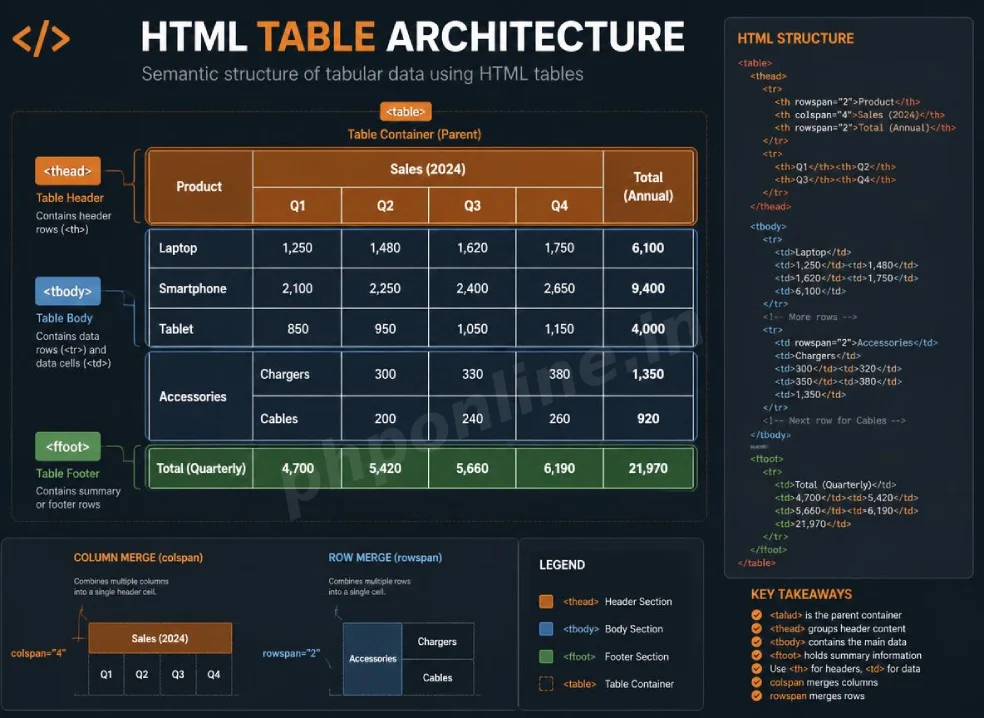
- Core Row and Cell Elements: Tables are constructed row-by-row using the
<tr>(Table Row) container, filled with either<th>(Table Header) or<td>(Table Data) cells. - Semantic Sectioning: Professional tables separate structure logically using
<thead>(header rows),<tbody>(data content rows), and<>(footer summary rows). - Cell Merging (colspan and rowspan): The
colspanattribute spans a single cell horizontally across multiple columns, whilerowspanspans a cell vertically across multiple rows. - Accessibility & Table Captions: The
<caption>tag andscopeattributes help screen readers announce tabular data contexts clearly to visually impaired users.
Welcome to Lesson 9 of our structured Web Development curriculum. Following our previous lesson on Easy HTML Lists Guide: 3 Essential List Types & Examples, you now understand how to organize items into bulleted, numbered, and description lists. The next essential milestone in front-end document structure is building structured data grids using HTML tables.
In web design, certain types of information—such as financial reports, product comparison matrices, sports statistics, flight schedules, and pricing plans—are best presented in grid layouts with clear horizontal rows and vertical columns. HTML tables provide the exact semantic elements required to structure two-dimensional data safely.
In this comprehensive HTML tables guide, we will explore table row and cell containers, semantic header/body/footer tags, column and row spanning, accessibility captions, CSS styling considerations, and hands-on code examples.
Prerequisites Before Building Data Grids
To test the hands-on code examples in this HTML tables tutorial, verify that your development environment meets these basic requirements:
- Web Browser: A modern web browser such as Google Chrome, Mozilla Firefox, Microsoft Edge, or Apple Safari.
- Code Editor: A text editor such as Visual Studio Code, Sublime Text, or Notepad++.
- Foundational Knowledge: Understanding of basic document structure, text formatting tags, and inline elements.
If you need to review how semantic text containers and formatting tags operate, visit our previous guide on Easy HTML Formatting Tags Guide: 10 Essential Elements & Examples.
1. Basic Structure of an HTML Table (<table>, <tr>, <th>, <td>)
HTML tables are created row-by-row from top to bottom. Four foundational tags dictate standard table construction:
<table>: The parent wrapper container for the entire tabular grid.<tr>(Table Row): Creates a horizontal row container to hold individual cells.<th>(Table Header): Defines a header cell (rendered as bold, centered text by default).<td>(Table Data): Defines a standard data cell containing regular text, numbers, or inline media.
Basic Table Code Example
<!-- Basic Student Marks Table -->
<table border="1" cellpadding="8" cellspacing="0">
    <tr>
        <th>Student Name</th>
        <th>Subject</th>
        <th>Score</th>
    </tr>
    <tr>
        <td>Alex Mercer</td>
        <td>HTML5 Fundamentals</td>
        <td>95%</td>
    </tr>
    <tr>
        <td>Sarah Connor</td>
        <td>PHP Backend Programming</td>
        <td>98%</td>
    </tr>
</table>
Want to test this HTML markup live? Try running it in our Online HTML Editor.
2. Semantic Table Sectioning (<thead>, <tbody>, <tfoot>, <caption>)
For production web applications, wrapping rows inside generic <table> tags alone is discouraged. Modern HTML5 provides semantic sectioning tags that divide tables into distinct structural zones:
<caption>: Defines a title or descriptive heading placed immediately above the table.<thead>: Groups the header row(s) at the top of the table grid.<tbody>: Groups the primary body data rows.<tfoot>: Groups footer summary rows (such as totals, averages, or page pagination).
Semantic Table Code Example
<!-- Semantic Financial Summary Table -->
<table border="1" cellpadding="10" cellspacing="0" style="width: 100%; border-collapse: collapse;">
    <caption><strong>Quarterly Course Enrollment Revenue Report</strong></caption>

    <thead style="background-color: #f2f2f2;">
        <tr>
            <th scope="col">Course Module</th>
            <th scope="col">Enrolled Students</th>
            <th scope="col">Price per Student</th>
            <th scope="col">Total Revenue</th>
        </tr>
    </thead>

    <tbody>
        <tr>
            <td>HTML5 & CSS3 Masterclass</td>
            <td>150</td>
            <td>$49.00</td>
            <td>$7,350.00</td>
        </tr>
        <tr>
            <td>PHP 8 & MySQL PDO Engineering</td>
            <td>220</td>
            <td>$79.00</td>
            <td>$17,380.00</td>
        </tr>
    </tbody>

    <tfoot style="background-color: #e6f2ff; font-weight: bold;">
        <tr>
            <td>Total Summary</td>
            <td>370 Students</td>
            <td>—</td>
            <td>$24,730.00</td>
        </tr>
    </tfoot>
</table>
Want to test this HTML markup live? Try running it in our Online HTML Editor.
3. Merging Table Cells: Spanning Columns and Rows
In complex tabular reports, individual cells often need to stretch horizontally across multiple columns or vertically across multiple rows. HTML provides the colspan and rowspan attributes for cell merging.
A. Merging Columns Horizontally (colspan)
The colspan attribute instructs a cell to span across two or more adjacent columns to its right:
<!-- Horizontal Column Merging Example -->
<table border="1" cellpadding="8" cellspacing="0">
    <tr>
        <th>Name</th>
        <th colspan="2">Contact Numbers (Mobile & Work)</th>
    </tr>
    <tr>
        <td>John Doe</td>
        <td>+1-555-0199</td>
        <td>+1-555-0122</td>
    </tr>
</table>
Want to test this HTML markup live? Try running it in our Online HTML Editor.
B. Merging Rows Vertically (rowspan)
The rowspan attribute instructs a cell to span vertically across two or more adjacent rows directly beneath it:
<!-- Vertical Row Merging Example -->
<table border="1" cellpadding="8" cellspacing="0">
    <tr>
        <th>Department</th>
        <th>Employee Name</th>
        <th>Role</th>
    </tr>
    <tr>
        <!-- This cell spans down across 2 rows -->
        <td rowspan="2">Engineering</td>
        <td>Alex Mercer</td>
        <td>Lead Architect</td>
    </tr>
    <tr>
        <!-- Note: Department cell is omitted here because the rowspan above covers it -->
        <td>Sarah Connor</td>
        <td>Security Engineer</td>
    </tr>
</table>
Want to test this HTML markup live? Try running it in our Online HTML Editor.
4. Important Web Design Rule: Never Use Tables for Page Layouts!
In the late 1990s, web developers used borderless <table> elements to position headers, sidebars, and multi-column article layouts. Using HTML tables for full page layouts is now strongly discouraged and considered bad practice.
Why Table Layouts Are Bad Practice Today:
- Accessibility Failures: Screen readers treat layout tables as data grids, reading out loud non-existent row numbers and cell contexts that confuse visually impaired users.
- Broken Mobile Responsiveness: Fixed table dimensions do not reflow naturally on small mobile smartphone screens.
- Excessive Code Bloat: Deeply nested table tags pollute HTML source code with unmaintainable markup.
- Modern CSS Solutions: Use CSS Flexbox and CSS Grid for layout positioning, reserving
<table>elements strictly for tabular data displays.
Validating HTML Table Syntax Code
Mismatched row cell counts, unclosed <tr> tags, and invalid colspan calculations can distort entire web page layouts. Always validate your markup using automated standard tools like our HTML Validator Tool to verify compliance with W3C web standards.
Summary Comparison of Core HTML Table Tags
| Tag Identifier | Structural Role | Default Visual Styling | Primary Application Scenario |
|---|---|---|---|
<table> | Root Container | Block container box | Encloses all table rows, sections, and cell structures. |
<caption> | Title Descriptor | Centered text above grid | Provides an accessible title summary for the entire data table. |
<thead> | Header Section | Top row container | Encloses top header rows containing column title descriptors. |
<tbody> | Data Body Section | Middle row container | Encloses primary data record rows. |
<tfoot> | Footer Section | Bottom row container | Encloses summary calculations, total sums, or averages. |
<tr> | Row Container | Horizontal row block | Holds individual header or data cells in a horizontal line. |
<th> | Header Cell | Bold and centered text | Defines column or row titles (supports scope="col"). |
<td> | Data Cell | Regular left-aligned text | Holds individual data values, text strings, or inline media. |
Troubleshooting Common HTML Table Errors
| Observed Table Error | Probable Cause | Recommended Solution |
|---|---|---|
| Table cells align unevenly with floating empty spaces | Inconsistent cell count across different rows (e.g., Row 1 has 4 cells, but Row 2 has 3 cells). | Ensure every <tr> row contains the exact same total number of cells, or use colspan / rowspan. |
| Cells overlap or push adjacent columns off-screen | Incorrect colspan or rowspan integer values exceeding actual row/column counts. | Double-check cell span math and validate code using our HTML Validator Tool. |
| Table borders render as double thick parallel lines | Default browser table border spacing algorithm active without CSS border collapse. | Add inline or external CSS property border-collapse: collapse; to the <table> element. |
| Screen readers fail to associate data cells with column headers | Omitting <th> tags or scope="col" / scope="row" accessibility attributes. | Use <th> tags for headers and add explicit scope="col" or scope="row" attributes. |
Frequently Asked Questions (FAQ)
Q1: What are HTML tables and why are they used?
HTML tables are structural markup grids used to display two-dimensional tabular datasets containing rows and columns. They allow visitors to scan and compare financial data, sports scores, pricing plans, and database records easily.
Q2: What is the difference between a <th> cell and a <td> cell in HTML?
A <th> (Table Header) cell defines a heading descriptor for a column or row and is rendered as bold, centered text by default. A <td> (Table Data) cell contains regular data values and is left-aligned by default.
Q3: How do colspan and rowspan attributes work in HTML tables?
The colspan attribute merges a single cell horizontally across multiple adjacent columns. The rowspan attribute merges a single cell vertically across multiple adjacent rows directly beneath it.
Q4: Should HTML tables be used to build complete website page layouts?
No. Using HTML tables for full web page layouts is an outdated practice that breaks mobile responsiveness, creates accessibility barriers for screen readers, and adds unnecessary code bloat. Use CSS Flexbox and CSS Grid for layout design instead.
Next Steps & Official References
Consult official technical web standards on the MDN Official HTML Table Basics Guide (mozilla.org).
Before publishing your tabular data, validate your table code syntax using our PHPOnline HTML Validator Tool.
Ready for the final lesson in Module 3? Proceed directly to the final lesson in Module 3: Next Lesson: HTML Semantic Layouts & Page Structure →
# Summary
Here is what you've learned in this lesson:
- Easy HTML Tables Guide: 5 Core Structural Tags & Examples
- Overview: Understanding HTML Tables & Tabular Data Grids
- Prerequisites Before Building Data Grids
- 1. Basic Structure of an HTML Table (<table>, <tr>, <th>, <td>)
- 2. Semantic Table Sectioning (<thead>, <tbody>, <tfoot>, <caption>)
- 3. Merging Table Cells: Spanning Columns and Rows
- 4. Important Web Design Rule: Never Use Tables for Page Layouts!
- Validating HTML Table Syntax Code
- Summary Comparison of Core HTML Table Tags
- Troubleshooting Common HTML Table Errors
- Frequently Asked Questions (FAQ)
- Next Steps & Official References
Continue to the next lesson and learn more about HTML Computer Code Elements.