
HTML Links
Easy HTML Links Guide: 5 Core Hyperlink Attributes & Examples
Master web navigation with this complete HTML links guide. Learn anchor tags, href attributes, absolute vs relative URLs, target attributes, and page anchors.
Estimated Read Time: 19 Minutes | Category: Web Development Fundamentals
Overview: Understanding HTML Links & Hypertext Navigation
Quick HTML Links Summary:
- Web Navigation Engine: Hyperlinks (created using the
<a>anchor tag) connect web pages, documents, and online resources together across the World Wide Web. - The href Attribute: The
href(Hypertext Reference) attribute specifies the target destination URL or file path where the link navigates when clicked. - Absolute vs. Relative URLs: Absolute URLs link to external website domains (e.g.,
https://example.com), while relative URLs link to internal pages within the same website directory. - Target Attribute Control: The
target="_blank"attribute forces links to open inside a new browser tab or window. - Security Safeguards: External links opening in new tabs should always include
rel="noopener noreferrer"to protect against cross-origin security vulnerabilities.
Welcome to Lesson 5 of our structured Web Development curriculum, marking the beginning of Module 2: Links, Images & Media. Following our previous tutorial on Easy HTML Formatting Tags Guide: 10 Essential Elements & Examples, you now understand how to apply inline emphasis, bolding, highlighting, and code formatting to text. The next vital step in building web pages is creating navigation networks using HTML links.
Hyperlinks are the single defining feature that transformed simple digital text documents into the interconnected World Wide Web. Without links, users would have no way to navigate between web pages, browse online stores, download files, or access external resources.
In this comprehensive HTML links guide, we will explore anchor tag syntax, destination URL paths, opening links in new tabs safely, email and telephone shortcuts, page jump bookmark anchors, link security, and practical code examples.
Prerequisites Before Creating Hyperlinks
To test the hands-on code examples in this HTML links tutorial, verify that your development environment meets these basic requirements:
- Web Browser: A modern web browser such as Google Chrome, Mozilla Firefox, Microsoft Edge, or Apple Safari.
- Code Editor: A text editor such as Visual Studio Code, Sublime Text, or Notepad++.
- Document Structure Foundations: Understanding of standard body elements and text formatting tags.
If you need to review how inline text formatting tags operate inside links, visit our previous guide on Easy HTML Formatting Tags Guide: 10 Essential Elements & Examples.
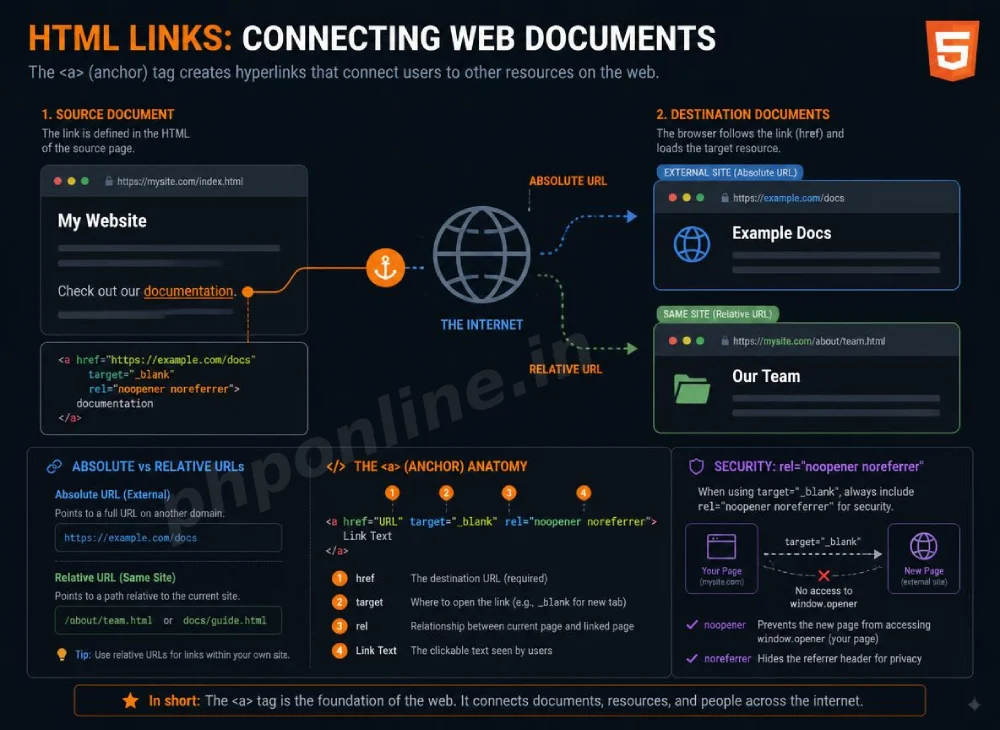
1. Anatomy of the HTML Anchor Tag (<a>)
Hyperlinks are created in HTML using the <a> (anchor) element. The anchor tag wraps around visible clickable content (called anchor text or clickable media) and uses the href attribute to define the target destination:
<!-- Basic HTML Link Structure -->
<a href="https://phponline.in">Visit PHPOnline Platform</a>
Want to test this HTML markup live? Try running it in our Online HTML Editor.
Key Components of an Anchor Element:
- Opening Tag (
<a>): Marks the start of the hyperlink container. - Destination Attribute (
href="..."): Tells the browser exactly where to send the user upon clicking. - Anchor Text: The visible, clickable text or image displayed inside the browser viewport.
- Closing Tag (
</a>): Marks the end of the clickable hyperlink zone.
2. Absolute vs. Relative URLs in HTML Links
When specifying destination addresses inside the href attribute, web developers choose between two path formats depending on whether the destination is external or internal:
| URL Path Type | Sample Syntax | Target Location | Primary Application Scenario |
|---|---|---|---|
| Absolute URL | href="https://phponline.in/tutorials/html/" | External website domain or explicit protocol path. | Linking to external third-party websites, APIs, or official documentation. |
| Relative URL | href="about.html" or href="../images/pic.png" | Internal file within the same website directory structure. | Navigating between local pages on your own website server. |
A. Absolute URL Example
<!-- Absolute URL linking to an external website domain -->
<a href="https://www.w3.org" target="_blank">Official W3C Standards Website</a>
B. Relative URL Example
<!-- Relative URL linking to an internal page in the same folder -->
<a href="contact.html">Contact Us</a>

<!-- Relative URL navigating up one directory level -->
<a href="../index.html">Return to Home</a>
Want to test this HTML markup live? Try running it in our Online HTML Editor.
3. Opening Links in New Tabs (<a target=”_blank”>)
By default, clicking a link loads the target destination inside the current browser window, replacing the active page. The target attribute allows developers to control where the linked document opens:
target="_self"(Default): Opens the document in the same window/tab.target="_blank": Opens the document in a new, separate browser tab or window.target="_parent": Opens the document in the parent frame.target="_top": Opens the document in the full body of the browser window.
Crucial Security Safeguard: rel=”noopener noreferrer”
Whenever you open external links in a new tab using target="_blank", the newly opened page gains partial JavaScript access to your original page via the window.opener object. Attackers can exploit this (known as tabnabbing) to silently redirect your original tab to a malicious phishing site.
To block tabnabbing security risks, always pair target="_blank" with rel="noopener noreferrer":
<!-- Secure External Link Configuration -->
<a href="https://phponline.in" target="_blank" rel="noopener noreferrer">
    Open Secure External Resource
</a>
Want to test this HTML markup live? Try running it in our Online HTML Editor.
4. Page Jump Bookmark Anchors (#id)
When writing long-form tutorials or documentation pages, you can create internal bookmark links (also called anchor jumps) that instantly scroll the user to a specific section on the exact same page.
Two-Step Anchor Jump Setup:
- Assign a unique
idattribute to the target section heading (e.g.,id="faq-section"). - Create a hyperlink with a hash symbol (
#) followed by that exact ID name inside thehrefattribute (e.g.,href="#faq-section").
<!-- Step 1: Clickable Jump Link -->
<p><a href="#troubleshooting-section">Jump to Troubleshooting Table ↓</a></p>
<!-- Page content... -->
<!-- Step 2: Target Section with Matching ID -->
<h2 id="troubleshooting-section">Troubleshooting Common Link Errors</h2>
<p>Here are solutions to frequent hyperlink errors...</p>Want to test this HTML markup live? Try running it in our Online HTML Editor.
5. Special Hyperlink Shortcuts: Email, Phone & File Downloads
HTML links are not limited to opening web pages. Using specialized URL protocol prefixes, anchor tags can trigger email clients, phone calls, or file downloads:
A. Email Links (mailto:)
<!-- Launches the user's default email app with pre-filled recipient -->
<a href="mailto:support@phponline.in?subject=Course%20Inquiry">Send Us an Email</a>
B. Telephone Call Links (tel:)
<!-- Triggers dialer on mobile devices or softphone apps on desktop -->
<a href="tel:+18005550199">Call Customer Support (+1-800-555-0199)</a>
C. File Download Links (download attribute)
<!-- Forces browser to download the file instead of displaying it -->
<a href="cheatsheet.pdf" download="HTML5_Cheatsheet.pdf">Download HTML Cheat Sheet (PDF)</a>
Want to test this HTML markup live? Try running it in our Online HTML Editor.
Validating HTML Link Code Standards
Unclosed anchor tags, broken URLs, and invalid attribute syntax can corrupt entire web page layouts. Always validate your markup using automated standard tools like our HTML Validator Tool to verify compliance with W3C web standards.
Summary Comparison of Top HTML Link Attributes
| Attribute Name | Sample Syntax | Default Behavior | Primary Application Scenario |
|---|---|---|---|
href | href="https://example.com" | Mandatory | Defines target destination URL, file path, email address, or phone number. |
target | target="_blank" | _self | Specifies whether the linked document opens in the current tab or a new tab. |
rel | rel="noopener noreferrer" | None | Secures external links opening in new tabs against cross-site tabnabbing attacks. |
download | download="file.pdf" | Opens in browser | Instructs browser to download the linked file directly to local storage. |
title | title="Additional details" | None | Displays a helpful pop-up tooltip when a user hovers over the link text. |
Troubleshooting Common HTML Link Errors
| Observed Link Error | Probable Cause | Recommended Solution |
|---|---|---|
Clicking a link returns 404 Not Found error | Misspelled file path, missing file extension (e.g., about instead of about.html), or case mismatch. | Verify relative folder paths and exact filename spellings. Validate code using our HTML Validator Tool. |
| Relative link resolves to external web address incorrectly | Forgetting the https:// protocol prefix on external links (e.g., href="google.com"). | Always include full protocol prefixes (https://) for external website domain links. |
| Page jump anchor link (#id) does not scroll when clicked | Mismatch between the link’s href="#target-id" and the target element’s id="target-id". | Ensure the target heading or container has a matching id="..." attribute without the hash symbol. |
| Text following a link becomes blue and clickable across the entire page | Omitting the closing </a> tag on an anchor element. | Add a closing </a> tag immediately after the intended clickable anchor text. |
Frequently Asked Questions (FAQ)
Q1: What are HTML links and why are they fundamental to the web?
HTML links (or hyperlinks) are anchor elements (<a>) that allow users to navigate between web pages, download files, jump to sections on a page, or access external websites. They form the navigational foundation of the World Wide Web.
Q2: What is the difference between an absolute URL and a relative URL?
An absolute URL contains the complete address protocol and domain name (e.g., https://phponline.in/tutorials/html/) used to link to external sites. A relative URL specifies a local path relative to the current file (e.g., contact.html) used to navigate within the same site.
Q3: Why should target=”_blank” always be paired with rel=”noopener noreferrer”?
Pairing target="_blank" with rel="noopener noreferrer" prevents security vulnerabilities known as tabnabbing. It prevents the newly opened external tab from accessing your original page’s window.opener JavaScript property to manipulate or redirect your page.
Q4: How do you create an email link in HTML?
Create an email link by placing the mailto: protocol prefix followed by the recipient email address inside the href attribute (e.g., <a href="mailto:support@phponline.in">Contact Email</a>).
Next Steps & Official References
Consult official technical web standards on the MDN Official Anchor Element Documentation (mozilla.org).
Before publishing your hyperlink navigation, validate your code syntax using our PHPOnline HTML Validator Tool.
Ready for the next lesson in sequence? Proceed directly to the next lesson in Module 2: Next Lesson: HTML Images & Image Attributes →
# Summary
Here is what you've learned in this lesson:
- Easy HTML Links Guide: 5 Core Hyperlink Attributes & Examples
- Overview: Understanding HTML Links & Hypertext Navigation
- Prerequisites Before Creating Hyperlinks
- 1. Anatomy of the HTML Anchor Tag (<a>)
- 2. Absolute vs. Relative URLs in HTML Links
- 3. Opening Links in New Tabs (<a target="_blank">)
- 4. Page Jump Bookmark Anchors (#id)
- 5. Special Hyperlink Shortcuts: Email, Phone & File Downloads
- Validating HTML Link Code Standards
- Summary Comparison of Top HTML Link Attributes
- Troubleshooting Common HTML Link Errors
- Frequently Asked Questions (FAQ)
- Next Steps & Official References
Continue to the next lesson and learn more about HTML Images.