
HTML Lists
Easy HTML Lists Guide: 3 Essential List Types & Examples
Master content organization with this complete HTML lists guide. Learn ordered, unordered, and description lists, nested list styling, and accessibility.
Estimated Read Time: 19 Minutes | Category: Web Development Fundamentals
Overview: Understanding HTML Lists & Structural Data Grouping
Quick HTML Lists Summary:
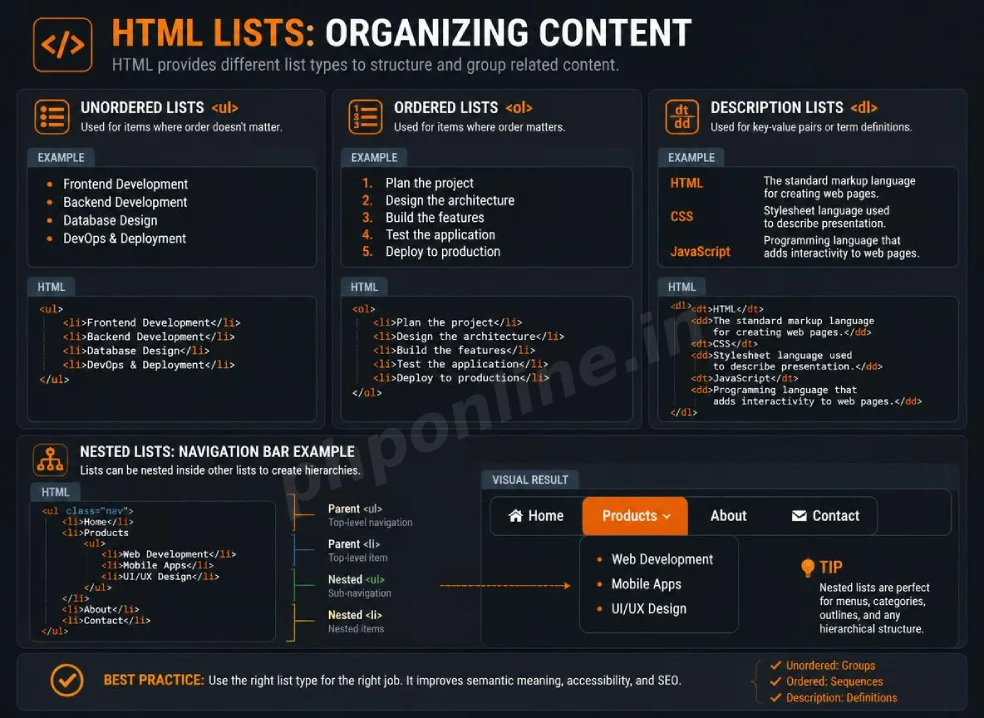
- Structural Data Grouping: HTML lists group related items together into clean, logical semantic collections.
- 3 Core List Classifications: HTML provides Unordered Lists (
<ul>for bulleted items), Ordered Lists (<ol>for numbered sequences), and Description Lists (<dl>for term-definition pairs). - The List Item Container (<li>): Both ordered and unordered lists wrap individual list entries inside child
<li>(List Item) tags. - Nested Hierarchy: Lists can be nested inside other list items to build multi-level dropdown navigation menus, sitemaps, and outline trees.
- Accessibility & Screen Readers: Screen readers announce the total item count of an HTML list automatically, helping visually impaired users navigate structured data efficiently.
Welcome to Lesson 8 of our structured Web Development curriculum, marking the beginning of Module 3: Lists, Tables & Layouts. Following our previous lesson on Easy HTML Audio and Video Guide: 5 Core Media Attributes & Examples, you now understand how to embed native audio tracks and video streams. The next fundamental step in structuring web page content is organizing information using HTML lists.
In written communication, readers struggle to digest dense blocks of plain text containing multi-step instructions, features, or technical terms. Using bulleted points, numbered steps, or term-definition pairs breaks down information into scannable chunks. Beyond plain text display, web developers use HTML list structures as the semantic foundation for building website header navigation bars, sidebar widgets, and footer links.
In this comprehensive HTML lists guide, we will explore bulleted unordered lists, numbered ordered lists, key-value description lists, list numbering attributes, multi-level nested lists, accessibility advantages, and hands-on code examples.
Prerequisites Before Organizing Content
To test the hands-on code examples in this HTML lists tutorial, verify that your development environment meets these basic requirements:
- Web Browser: A modern web browser such as Google Chrome, Mozilla Firefox, Microsoft Edge, or Apple Safari.
- Code Editor: A text editor such as Visual Studio Code, Sublime Text, or Notepad++.
- Formatting Foundations: Understanding of basic document structure, text formatting tags, and inline hyperlinks.
If you need to review how inline hyperlinks operate inside list elements, visit our previous guide on Easy HTML Links Guide: 5 Core Hyperlink Attributes & Examples.
1. Unordered HTML Lists (<ul> and <li>)
An unordered list groups items where the sequential order of entries does not alter the meaning of the content (for example, a shopping list, a list of course prerequisites, or a list of website navigation links).
Unordered lists begin with the parent <ul> element, and each individual entry inside is enclosed within a child <li> (List Item) element. By default, browsers display unordered list items with solid black bullet points:
Unordered List Code Example
<!-- Unordered List of Course Features -->
<h3>Why Learn Web Development with PHPOnline?</h3>
<ul>
    <li>100% Free interactive tutorials with real-world code examples.</li>
    <li>Built-in online code testing compiler tools.</li>
    <li>Full coverage of modern HTML5, CSS3, PHP 8, and MySQL PDO.</li>
    <li>Structured step-by-step curriculum designed for beginners.</li>
</ul>
Want to test this HTML markup live? Try running it in our Online HTML Editor.
2. Ordered HTML Lists (<ol> and <li>)
An ordered list groups items where the exact sequence position matters (such as recipe instructions, installation steps, top-10 rankings, or procedural workflows).
Ordered lists begin with the parent <ol> element, and each entry is enclosed inside a child <li> element. By default, browsers automatically prepend sequential numbers (1, 2, 3…) to ordered list items:
Ordered List Code Example
<!-- Ordered List of Step-by-Step Instructions -->
<h3>Steps to Deploy Your First HTML Web Page:</h3>
<ol>
    <li>Write valid HTML markup inside your code editor.</li>
    <li>Save the file locally with an <code>.html</code> extension.</li>
    <li>Test your layout using an automated HTML validator tool.</li>
    <li>Upload the validated HTML file to your web server host.</li>
</ol>
Want to test this HTML markup live? Try running it in our Online HTML Editor.
Customizing Ordered List Attributes (type, start, reversed)
HTML5 provides native attributes to alter ordered list numbering systems without using CSS:
type: Changes the numbering marker style ("1"for numbers,"A"for uppercase letters,"a"for lowercase letters,"I"for uppercase Roman numerals, and"i"for lowercase Roman numerals).start: Specifies a custom starting integer index for the list (e.g.,start="5"begins numbering at 5).reversed: A boolean attribute that counts numbered list markers downwards in reverse order.
<!-- Custom Ordered List using Roman Numerals starting at 5 -->
<ol type="I" start="5">
    <li>Fifth Phase: Backend Integration</li>
    <li>Sixth Phase: Database Setup</li>
    <li>Seventh Phase: Security Validation</li>
</ol>
Want to test this HTML markup live? Try running it in our Online HTML Editor.
3. Description Lists (<dl>, <dt>, and <dd>)
A description list (formerly known as a definition list) groups terms alongside their corresponding descriptions or explanations. It is ideal for glossaries, metadata key-value pairs, or FAQ lists.
The Three Description List Tags:
<dl>(Description List): The parent wrapper container for the list.<dt>(Description Term): Defines the term, key name, or phrase being described.<dd>(Description Details): Defines the definition, explanation, or value corresponding to the preceding term.
Description List Code Example
<!-- Description List for Web Development Terms -->
<h3>Web Glossary Definitions:</h3>
<dl>
    <dt><strong>HTML</strong></dt>
    <dd>HyperText Markup Language — The standard markup language used to structure web documents.</dd>

    <dt><strong>CSS</strong></dt>
    <dd>Cascading Style Sheets — The stylesheet language used to format visual presentation, colors, and layout.</dd>

    <dt><strong>PHP</strong></dt>
    <dd>Hypertext Preprocessor — A server-side scripting language used to handle dynamic database applications.</dd>
</dl>
Want to test this HTML markup live? Try running it in our Online HTML Editor.
4. Multi-Level Nested HTML Lists
Lists can be nested inside other list items to build complex multi-level outlines, sitemaps, or multi-tier navigation menus.
Syntax Rule for Nesting: To create a valid nested list, place the child <ul> or <ol> container inside an individual parent <li> tag, before the parent closing </li> tag:
<!-- Multi-Level Nested Outline List -->
<h3>Full-Stack Web Engineering Curriculum Outline:</h3>
<ul>
    <li>Module 1: Front-End Development
        <ul>
            <li>HTML5 Document Architecture</li>
            <li>CSS3 Layouts & Flexbox</li>
            <li>JavaScript DOM Manipulation</li>
        </ul>
    </li>
    <li>Module 2: Back-End Development
        <ul>
            <li>PHP Syntax & Functions</li>
            <li>MySQL PDO Database Integration</li>
            <li>Session Security & Authentication</li>
        </ul>
    </li>
</ul>
Want to test this HTML markup live? Try running it in our Online HTML Editor.
Validating HTML List Markup Syntax
Placing text directly inside a <ul> or <ol> container without wrapping it in an <li> element is an invalid syntax error according to W3C standards. Always validate your markup using automated standard tools like our HTML Validator Tool to ensure compliance with W3C web standards.
Summary Comparison of the 3 HTML List Classifications
| List Category | Parent Tag | Child Tags | Default Marker Display | Primary Application Scenario |
|---|---|---|---|---|
| Unordered List | <ul> | <li> | Solid bullet points (•) | Groupings where sequence order does not matter (features, navigation links). |
| Ordered List | <ol> | <li> | Sequential numbers (1, 2, 3…) | Step-by-step instructions, rankings, recipes, or workflows. |
| Description List | <dl> | <dt> & <dd> | Indented definition block | Glossaries, metadata key-value pairs, or term explanations. |
Troubleshooting Common HTML List Errors
| Observed List Error | Probable Cause | Recommended Solution |
|---|---|---|
W3C Validation Error: Element ul not allowed as child of element ul | Placing a nested <ul> directly inside a parent <ul> instead of nesting it inside an <li> item. | Nest child lists inside parent <li> containers (e.g., <li>Parent <ul>...</ul></li>). Validate with our HTML Validator Tool. |
| List items render on screen without bullets or numbers | CSS stylesheet rules overriding default markers (e.g., list-style-type: none;). | Inspect element styles in browser Developer Tools to check for overriding CSS rules. |
| Numbers jump unexpectedly in an ordered list | Accidentally closing the parent </ol> tag early and opening a new <ol> block. | Ensure all <li> items belong to a single, continuous <ol> ... </ol> parent container. |
| Screen reader skips announcing total item count | Wrapping list items in plain <div> tags rather than semantic <ul> or <ol> elements. | Use semantic list elements (<ul>, <ol>, <li>) to preserve accessibility features. |
Frequently Asked Questions (FAQ)
Q1: What are HTML lists and why are they used in web design?
HTML lists are semantic structural tags used to group related information into organized collections. They make web content scannable for human readers, establish accessible structural semantics for screen readers, and serve as the foundation for building website navigation menus.
Q2: What is the main difference between an unordered list (<ul>) and an ordered list (<ol>)?
An unordered list (<ul>) displays bulleted markers for items where sequence position does not matter. An ordered list (<ol>) displays sequential numbers or letters for items where exact numerical order matters (such as step-by-step procedures).
Q3: What are description lists (<dl>) used for in HTML?
Description lists (<dl>) group terms (<dt>) alongside their corresponding explanations or values (<dd>). They are designed for glossaries, FAQ sections, and key-value metadata listings.
Q4: How do you properly nest a list inside another HTML list?
To nest a list properly, place the nested <ul> or <ol> container entirely inside a parent <li> tag before that parent tag closes (e.g., <li>Parent Item <ul><li>Child Item</li></ul></li>).
Next Steps & Official References
Consult official technical web standards on the MDN Official HTML Lists Guide (mozilla.org).
Before publishing your web page layout, validate your list markup syntax using our PHPOnline HTML Validator Tool.
Ready for the next lesson in sequence? Proceed directly to the next lesson in Module 3: Next Lesson: HTML Tables & Data Grid Architecture →
# Summary
Here is what you've learned in this lesson:
- Easy HTML Lists Guide: 3 Essential List Types & Examples
- Overview: Understanding HTML Lists & Structural Data Grouping
- Prerequisites Before Organizing Content
- 1. Unordered HTML Lists (<ul> and <li>)
- 2. Ordered HTML Lists (<ol> and <li>)
- 3. Description Lists (<dl>, <dt>, and <dd>)
- 4. Multi-Level Nested HTML Lists
- Validating HTML List Markup Syntax
- Summary Comparison of the 3 HTML List Classifications
- Troubleshooting Common HTML List Errors
- Frequently Asked Questions (FAQ)
- Next Steps & Official References
Continue to the next lesson and learn more about HTML Tables.