
HTML Form Validation
Easy HTML Form Validation Guide: 6 Core Constraint Attributes & Examples
Master client-side user input checks with this complete HTML form validation guide. Learn required, pattern regex, min, max, minlength, maxlength, and custom CSS pseudoclasses.
Estimated Read Time: 21 Minutes | Category: Web Development Fundamentals
Overview: Understanding HTML Form Validation & Native Client Checks
Quick HTML Form Validation Summary:
- Client-Side Input Shield: HTML form validation verifies user inputs inside the browser before form data payloads are transmitted to backend web servers.
- Zero-JavaScript Native Constraint API: Modern HTML5 provides built-in validation attributes (like
required,pattern,minlength, andtype) that intercept invalid submissions automatically without custom JavaScript. - Instant User Feedback: Native validation displays localized browser error tooltips instantly when required fields are missing or improperly formatted.
- Dynamic CSS Pseudo-Classes: CSS pseudo-classes such as
:validand:invalidstyle form controls dynamically based on real-time validation states. - Defense-in-Depth Security Rule: HTML form validation improves user experience, but must always be paired with backend server-side validation (e.g., PHP) for complete web security.
Welcome to Lesson 12 of our structured Web Development curriculum, marking the final master lesson in Module 4: Web Forms & Interactive Controls. Following our previous tutorial on Easy HTML Forms Guide: 8 Essential Input Types & Examples, you now understand how to construct forms, bind accessible labels, and collect user input using checkboxes, radio buttons, dropdown selects, and textareas. The next vital step in building professional web forms is enforcing data accuracy using HTML form validation.
When users fill out web forms—whether registering for an account, submitting payment details, or booking a appointment—they occasionally make mistakes. They might accidentally leave mandatory fields empty, mistype email addresses, enter passwords that are too short, or input text into numeric phone fields. If unvalidated data is submitted directly to backend databases, it causes application crashes, corrupted database records, and poor user experiences.
In this comprehensive HTML form validation guide, we will explore native HTML5 constraint attributes, required field rules, text length boundaries, numeric ranges, regular expression pattern matching, custom validation tooltips, dynamic CSS styling, and complete production form validation scripts.
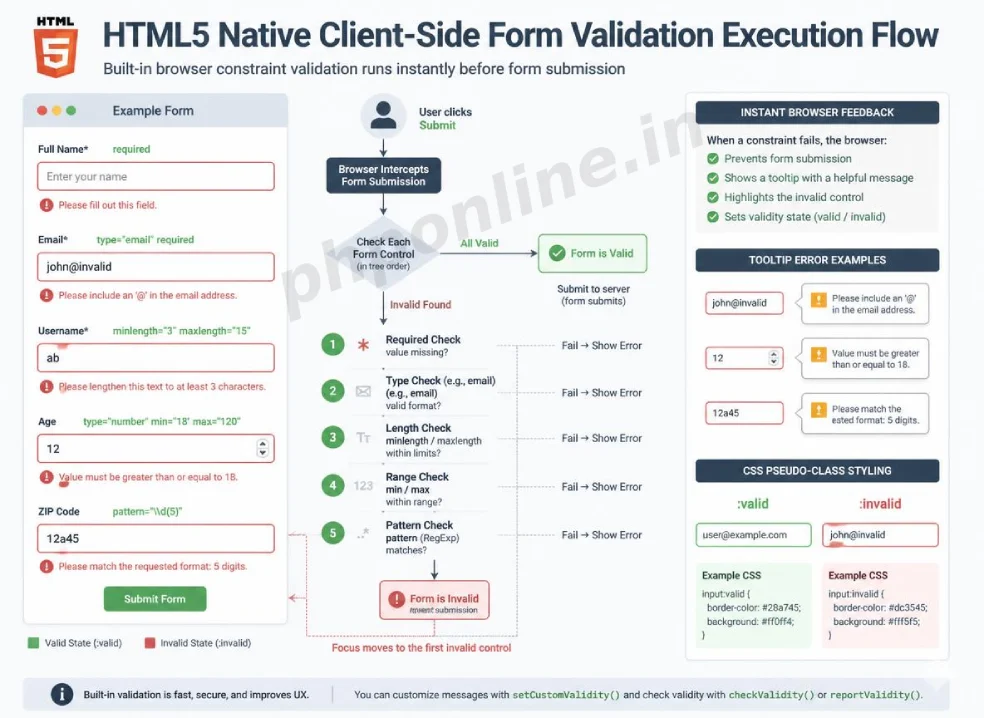
Prerequisites Before Applying Validation Constraints
To test the hands-on code examples in this HTML form validation tutorial, verify that your development environment meets these basic requirements:
- Web Browser: A modern web browser such as Google Chrome, Mozilla Firefox, Microsoft Edge, or Apple Safari.
- Code Editor: A text editor such as Visual Studio Code, Sublime Text, or Notepad++.
- Form Foundations: Understanding of basic HTML form elements, input types, and accessible label binding.
If you need to review how input types and accessible labels are structured inside forms, visit our previous guide on Easy HTML Forms Guide: 8 Essential Input Types & Examples.
1. What Is HTML Form Validation? (Client-Side vs. Server-Side)
In full-stack web architecture, form validation operates at two distinct checkpoints:
| Validation Layer | Execution Location | Primary Objective | Key Advantage |
|---|---|---|---|
| Client-Side Validation | User Browser (HTML5 / CSS / JS) | Provides instant UI feedback, preventing obvious user mistakes before network submission. | Zero server load, instant interactive error tooltips, excellent user experience. |
| Server-Side Validation | Backend Web Server (PHP / Database) | Enforces strict data security rules, sanitizing inputs against hacker exploits and SQL injection. | Cannot be bypassed by attackers (mandatory for real security). |
Core Security Principle: Client-side HTML form validation makes forms friendly and fast for honest users, but it can be bypassed easily by malicious users who disable JavaScript or send raw HTTP requests. Always pair client-side HTML validation with server-side security checks.
2. The 6 Essential HTML5 Validation Attributes
HTML5 introduced six native constraint attributes that can be applied directly to <input>, <select>, and <textarea> elements to enforce strict data formatting:
1. The required Attribute (Mandatory Fields)
The required boolean attribute specifies that an input field must be completed before the browser permits form submission. If a user attempts to submit a form with an empty required field, the browser blocks submission and focuses the cursor on the missing field with a visual error tooltip:
<!-- Required Input Field Example -->
<label for="user_name">Full Name (Required):</label>
<input type="text" id="user_name" name="user_name" required>
Want to test this HTML markup live? Try running it in our Online HTML Editor.
2. The minlength and maxlength Attributes (Text Length Limits)
The minlength and maxlength attributes constrain the minimum and maximum number of characters allowed inside a text input or textarea:
minlength="8": Blocks form submission if the user enters fewer than 8 characters.maxlength="20": Prevents the user from typing more than 20 characters into the field.
<!-- Username Length Constraint Example (5 to 15 Characters) -->
<label for="account_user">Choose Username (5-15 chars):</label>
<input type="text" id="account_user" name="account_user" minlength="5" maxlength="15" required>
Want to test this HTML markup live? Try running it in our Online HTML Editor.
3. The min and max Attributes (Numeric Range Boundaries)
The min and max attributes set minimum and maximum numeric boundaries for numerical inputs (type="number", type="date", type="range"):
<!-- Numeric Age Constraint Example (18 to 99 Years) -->
<label for="user_age">Enter Your Age (18+):</label>
<input type="number" id="user_age" name="user_age" min="18" max="99" required>
4. The step Attribute (Numeric Intervals)
The step attribute specifies legal number intervals for numeric inputs (for example, enforcing currency decimals in increments of 0.01 or even numbers in steps of 2):
<!-- Price Input Incrementing in Cent Decimals -->
<label for="item_price">Item Price ($):</label>
<input type="number" id="item_price" name="item_price" min="0.01" step="0.01" placeholder="19.99" required>
Want to test this HTML markup live? Try running it in our Online HTML Editor.
5. The pattern Attribute (Regex Match Validation)
The pattern attribute tests user input against a custom **Regular Expression (Regex)**. The form will only submit if the field value matches the exact regex pattern structure specified.
Pair the pattern attribute with the title attribute. The text string provided inside title="..." is displayed inside the browser error tooltip when pattern validation fails, explaining the expected format to the user:
<!-- Zip Code Validation (5 Digits) -->
<label for="zip_code">US Zip Code (5 Digits):</label>
<input type="text" id="zip_code" name="zip_code" pattern="[0-9]{5}" title="Please enter a 5-digit numeric zip code (e.g. 90210)" required>

<!-- Phone Number Validation (Format: 123-456-7890) -->
<label for="phone_num">Phone Number (Format: 123-456-7890):</label>
<input type="tel" id="phone_num" name="phone_num" pattern="[0-9]{3}-[0-9]{3}-[0-9]{4}" title="Format: 123-456-7890" required>
Want to test this HTML markup live? Try running it in our Online HTML Editor.
6. Built-in Type Validation (email, url, date)
Selecting specialized HTML5 input types enforces automatic structural validation out-of-the-box:
type="email": Automatically validates that user input contains an@symbol and a valid domain extension.type="url": Automatically validates that input begins with a valid web protocol prefix (e.g.,https://).
<!-- Built-in Semantic Type Validation -->
<label for="website_url">Personal Portfolio Website:</label>
<input type="url" id="website_url" name="website_url" placeholder="https://phponline.in" required>
3. Styling Validation States with CSS Pseudo-Classes
HTML5 form validation integrates directly with modern CSS through dynamic pseudo-classes. This allows you to style valid and invalid input fields dynamically as users type:
:required: Applies styling to any input field that contains therequiredattribute.:optional: Applies styling to fields that do not have therequiredattribute.:valid: Applies real-time green borders or checkmarks when an input’s current value satisfies all validation rules.:invalid: Applies real-time red borders or warning shadows when an input’s current value fails validation rules.
CSS Validation Styling Snippet
<style>
    /* Style required fields with a subtle light yellow tint */
    input:required {
        background-color: #fffdf0;
    }

    /* Green border feedback when input satisfies validation rules */
    input:focus:valid {
        border: 2px solid #28a745;
        outline: none;
    }

    /* Red border feedback when input fails validation rules */
    input:focus:invalid {
        border: 2px solid #dc3545;
        outline: none;
    }
</style>
4. Disabling Native Validation (novalidate Attribute)
During development or when writing custom JavaScript validation scripts, you may want to disable the browser’s default tooltip popups. Adding the novalidate boolean attribute to the opening <form> tag disables native browser constraint tooltips completely:
<!-- Form Disabling Native Browser Error Tooltips -->
<form action="process.php" method="POST" novalidate>
    <!-- Custom JavaScript or server-side validation will handle errors -->
</form>
5. Complete Production-Grade Validated Form Example
Below is a complete, well-structured user registration form incorporating multiple native HTML5 validation constraints, regular expression patterns, accessible labels, numeric range limits, and submit controls combined:
<h2>Validated Student Enrollment Form</h2>

<form action="register.php" method="POST">

    <!-- 1. Required Full Name (Text Length 3-30 chars) -->
    <p>
        <label for="v_name">Full Name (Required):</label><br>
        <input type="text" id="v_name" name="v_name" minlength="3" maxlength="30" placeholder="Alex Mercer" required>
    </p>

    <!-- 2. Required Email Validation -->
    <p>
        <label for="v_email">Email Address (Required):</label><br>
        <input type="email" id="v_email" name="v_email" placeholder="alex@phponline.in" required>
    </p>

    <!-- 3. Password Strength (Min 8 chars, 1 number, 1 uppercase) -->
    <p>
        <label for="v_pass">Password (Min 8 Chars, 1 Number, 1 Uppercase):</label><br>
        <input type="password" id="v_pass" name="v_pass" pattern="(?=.*\d)(?=.*[a-z])(?=.*[A-Z]).{8,}" title="Must contain at least 8 characters, including 1 number and 1 uppercase letter" required>
    </p>

    <!-- 4. Age Boundary (18 to 99) -->
    <p>
        <label for="v_age">Age (Must be 18 or older):</label><br>
        <input type="number" id="v_age" name="v_age" min="18" max="99" placeholder="25" required>
    </p>

    <!-- 5. US Phone Number Regex Pattern (Format: 123-456-7890) -->
    <p>
        <label for="v_phone">Mobile Phone (Format: 123-456-7890):</label><br>
        <input type="tel" id="v_phone" name="v_phone" pattern="[0-9]{3}-[0-9]{3}-[0-9]{4}" title="Please match format: 123-456-7890" required>
    </p>

    <!-- 6. Website URL -->
    <p>
        <label for="v_url">Portfolio Website (URL):</label><br>
        <input type="url" id="v_url" name="v_url" placeholder="https://phponline.in" required>
    </p>

    <!-- 7. Checkbox Confirmation -->
    <p>
        <input type="checkbox" id="v_terms" name="v_terms" value="accepted" required>
        <label for="v_terms">I confirm that all submitted details are accurate</label>
    </p>

    <!-- Submit Button -->
    <p>
        <button type="submit" name="submit_btn">Submit Verified Application</button>
    </p>

</form>
Want to test this HTML markup live? Try running it in our Online HTML Editor.
Validating HTML Form Code Standards
Misspelled pattern regular expressions, invalid min/max boundary integers, and unclosed attribute quotes can break client-side validation logic. Always validate your form markup using automated standard tools like our HTML Validator Tool to verify compliance with W3C web standards.
Summary Comparison of Core HTML Validation Attributes
| Attribute Name | Accepted Value Type | Applies To Elements | Primary Validation Function |
|---|---|---|---|
required | Boolean flag | input, select, textarea | Ensures field cannot be left blank during form submission. |
minlength | Integer number | input, textarea | Enforces minimum character length count. |
maxlength | Integer number | input, textarea | Restricts maximum character length count. |
min | Number or Date string | number, date, range | Sets lowest acceptable numeric value or earliest allowed date. |
max | Number or Date string | number, date, range | Sets highest acceptable numeric value or latest allowed date. |
pattern | Regex expression string | text, tel, search, url | Tests input text against a custom Regular Expression pattern. |
step | Integer or Float number | number, range | Specifies legal number granularity intervals (e.g., step="0.01"). |
novalidate | Boolean flag | <form> container | Disables native browser tooltips and client-side validation checks. |
Troubleshooting Common HTML Form Validation Errors
| Observed Validation Issue | Probable Cause | Recommended Solution |
|---|---|---|
Form submits successfully even when required fields are empty | Adding novalidate attribute to opening <form> tag or placing submit button outside the form container. | Remove novalidate from the <form> tag and verify submit button is nested inside the form. |
pattern="..." attribute fails validation on valid inputs | Syntax error inside regular expression string (e.g., unescaped special characters or mismatched brackets). | Test regex expressions independently and validate code syntax using our HTML Validator Tool. |
| Browser tooltip displays vague “Please match the requested format” error | Omitting the title="..." attribute when using the pattern attribute. | Add a descriptive title="Instructions..." attribute explaining the exact expected input format. |
| Numeric input accepts letters or special symbols | Using type="text" instead of type="number" or omitting the pattern attribute. | Change input type to type="number" or enforce numbers using pattern="[0-9]+". |
Frequently Asked Questions (FAQ)
Q1: What is HTML form validation and why is it used?
HTML form validation is a native browser mechanism that verifies whether user-submitted form data satisfies specified rules (such as mandatory fields, email formatting, character limits, and regex patterns) before transmitting the payload to a web server.
Q2: What is the difference between client-side and server-side form validation?
Client-side validation occurs inside the user’s browser using HTML5 attributes, providing instant visual error tooltips without network delay. Server-side validation occurs on the web server (using PHP or databases) and is mandatory for web application security because client-side checks can be bypassed by malicious users.
Q3: How does the pattern attribute work in HTML forms?
The pattern attribute accepts a Regular Expression (Regex) search string. When the user submits the form, the browser checks if the typed input matches the regex pattern. If it fails to match, submission is blocked and the text stored inside the title attribute is displayed as an error tooltip.
Q4: How do you disable native browser validation tooltips?
To disable native browser validation tooltips (for example, when implementing custom JavaScript validation logic), add the novalidate attribute to the opening <form> tag (e.g., <form action="process.php" method="POST" novalidate>).
Course Completion & Official References
Congratulations on completing our complete structured HTML tutorial curriculum roadmap! You now possess comprehensive front-end engineering skills spanning HTML5 document architecture, semantic layouts, typography, links, graphics, native audio/video media, data tables, lists, interactive forms, and constraint validation.
Consult official technical web standards on the MDN Official Form Validation Guide (mozilla.org).
Validate your web form code syntax using our PHPOnline HTML Validator Tool.
Return to Course Index or Backend PHP Track: Revisit front-end foundations or advance to backend database development: Course Homepage: Best PHP & Web Development Tutorials → [cite: 1]
# Summary
Here is what you've learned in this lesson:
- Easy HTML Form Validation Guide: 6 Core Constraint Attributes & Examples
- Overview: Understanding HTML Form Validation & Native Client Checks
- Prerequisites Before Applying Validation Constraints
- 1. What Is HTML Form Validation? (Client-Side vs. Server-Side)
- 2. The 6 Essential HTML5 Validation Attributes
- 3. Styling Validation States with CSS Pseudo-Classes
- 4. Disabling Native Validation (novalidate Attribute)
- 5. Complete Production-Grade Validated Form Example
- Validating HTML Form Code Standards
- Summary Comparison of Core HTML Validation Attributes
- Troubleshooting Common HTML Form Validation Errors
- Frequently Asked Questions (FAQ)
- Course Completion & Official References
Continue to the next lesson and learn more about HTML Responsive.