
HTML Formatting Tags
Easy HTML Formatting Tags Guide: 10 Essential Elements & Examples
Master text presentation with this complete HTML formatting tags guide. Learn strong, em, mark, code, del, ins, sub, sup, and W3C validation rules.
Estimated Read Time: 19 Minutes | Category: Web Development Fundamentals
Overview: Understanding HTML Formatting Tags & Semantic Emphasis
Quick HTML Formatting Tags Summary:
- Visual & Semantic Formatting: HTML formatting tags modify the visual presentation and semantic meaning of inline text without altering page structure.
- Semantic Importance vs. Visual Boldness: The
<strong>tag indicates strong semantic importance for screen readers, whereas<b>provides visual boldness without extra importance. - Emphasis vs. Italics: The
<em>tag adds verbal stress emphasis, whereas<i>formats text in italics for technical terms, foreign words, or thoughts. - Computer Code Elements: Tags like
<code>,<kbd>, and<pre>format technical snippets, keyboard shortcuts, and preformatted text blocks. - Document Validation: Validating syntax through automated tools ensures all nested formatting tags adhere to W3C web standards.
Welcome to Lesson 4 of our structured Web Development curriculum, marking the final lesson in Module 1: HTML Basics & Document Structure. Following our previous lesson on Easy HTML Headings and Paragraphs Guide: 6 Hierarchy Levels & Examples, you now understand how to structure titles and paragraph blocks. The next essential step in front-end design is applying inline text styling using HTML formatting tags.
In written communication, readers rely on subtle typographic cues—such as bold text for critical warnings, italics for book titles, highlighted backgrounds for key terms, and strikethroughs for discounted prices—to scan and absorb information. HTML provides specialized inline tags designed specifically to convey these visual and semantic distinction cues to web browsers and screen reader technologies.
In this comprehensive HTML formatting tags guide, we will explore semantic versus physical text tags, emphasis rules, subscript/superscript mathematics, computer code elements, document markup validation, and hands-on code examples.
Prerequisites Before Formatting Inline Text
To test the hands-on code examples in this HTML formatting tags tutorial, verify that your development environment meets these basic requirements:
- Web Browser: A modern web browser such as Google Chrome, Mozilla Firefox, Microsoft Edge, or Apple Safari.
- Code Editor: A text editor such as Visual Studio Code, Sublime Text, or Notepad++.
- Paragraph Foundations: Understanding of standard paragraph blocks (
<p>) and heading containers.
If you need to review how paragraph containers and line breaks operate, visit our previous guide on Easy HTML Headings and Paragraphs Guide: 6 Hierarchy Levels & Examples.
1. Semantic vs. Physical Formatting Tags
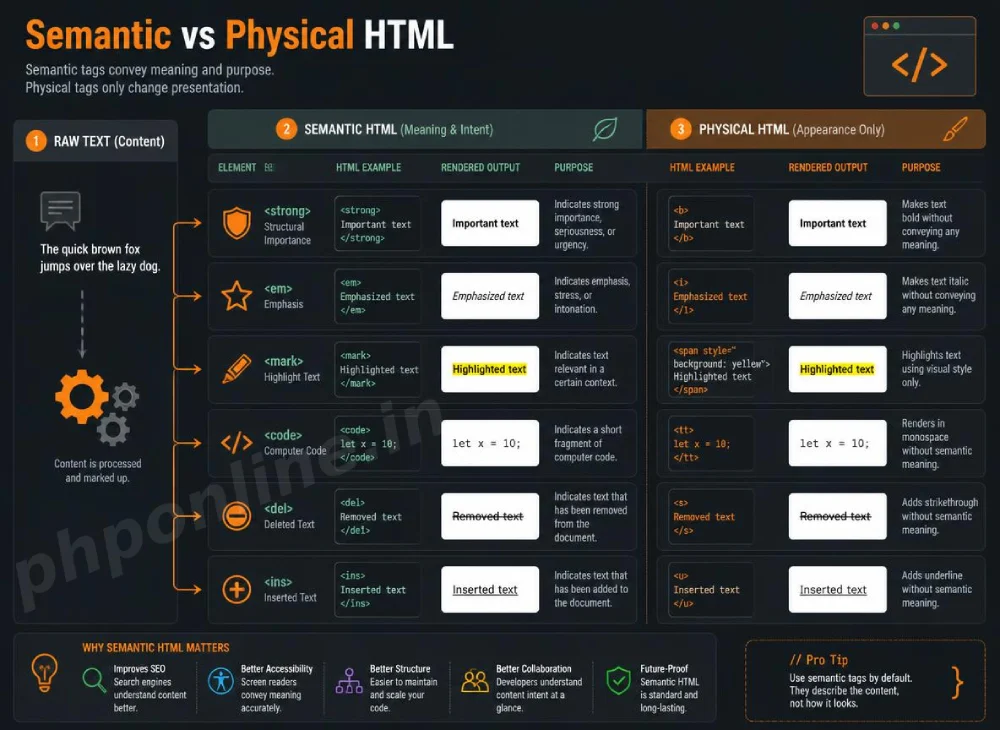
In early web development, tags were chosen purely for visual appearance. In modern HTML5, web standards distinguish strictly between semantic tags (which describe content meaning to search engines and screen readers) and physical tags (which only alter visual styling):
| Formatting Requirement | Semantic HTML5 Tag (Recommended) | Physical Legacy Tag (Styling Only) | Semantic Difference |
|---|---|---|---|
| Bold / Important Text | <strong> | <b> | <strong> alerts screen readers to emphasize important warnings. <b> makes text bold without extra semantic weight. |
| Italic / Emphasized Text | <em> | <i> | <em> adds verbal stress emphasis. <i> styles text in italics for technical terms, idiom phrases, or scientific species names. |
A. Using <strong> and <b>
<p>
    <strong>Warning:</strong> Always backup your database files before executing migration scripts!<br>
    The new product collection features <b>sleek dark matte</b> finishes.
</p>
Want to test this HTML markup live? Try running it in our Online HTML Editor.
B. Using <em> and <i>
<p>
    You <em>must</em> complete the prerequisite lessons before taking the final exam.<br>
    The scientific species name for the domestic cat is <i>Felis catus</i>.
</p>
Want to test this HTML markup live? Try running it in our Online HTML Editor.
2. Text Highlighting, Deletions, and Insertions
HTML provides specialized tags for editing contexts, e-commerce pricing updates, and highlighting reference notes.
A. Highlighted Text (<mark>)
The <mark> tag highlights text with a yellow background fill, representing relevant search term matches or highlighted quotes:
<p>Search query results for <mark>PHP PDO</mark> found in 3 documentation files.</p>B. Deleted (<del>) and Inserted (<ins>) Text
The <del> tag renders a strikethrough line over deleted text, while <ins> renders an underline below inserted text. Together, they are ideal for showing price discounts or document edits:
<p>
    Special Offer: <del>$99.00</del> <ins>$49.00</ins> (Save 50% Today!)
</p>
Want to test this HTML markup live? Try running it in our Online HTML Editor.
3. Subscript (<sub>) and Superscript (<sup>) Tags
Subscript and superscript tags format text to appear half a character height lower or higher than the baseline body text.
<sub>: Renders subscript text (e.g., chemical formulas like H2O).<sup>: Renders superscript text (e.g., mathematical exponents like E = mc2, or ordinal dates like 1st).
<p>
    Chemical Formula for Water: H<sub>2</sub>O<br>
    Mathematical Equation: 10<sup>2</sup> = 100<br>
    Tournament Position: Ended in 1<sup>st</sup> Place!
</p>
Want to test this HTML markup live? Try running it in our Online HTML Editor.
4. Formatting Computer Code and Technical Input
When writing technical tutorials or developer documentation, HTML provides dedicated tags to format inline code snippets, user keyboard inputs, and sample terminal outputs in monospace fonts.
| Tag Syntax | Primary Semantic Purpose | Rendered Appearance |
|---|---|---|
<code> | Formats inline computer code snippets or programming keywords. | Monospace font (e.g., echo $var;). |
<kbd> | Represents user keyboard input instructions. | Monospace font with key border (e.g., Ctrl + C). |
<samp> | Represents sample computer program output. | Monospace terminal font. |
<pre> | Encloses multi-line code blocks, preserving all spaces and line breaks. | Monospace preformatted block. |
Technical Formatting Example
<p>
    To execute a script, type <code>php index.php</code> in your terminal.<br>
    To save changes in your code editor, press <kbd>Ctrl</kbd> + <kbd>S</kbd>.<br>
    Server Terminal Output: <samp>200 OK — Request Processed Successfully</samp>
</p>
Want to test this HTML markup live? Try running it in our Online HTML Editor.
5. Validating HTML Markup Syntax with W3C Tools
When nesting multiple formatting tags (e.g., placing <em> inside <strong>), tags must be closed in the exact reverse order they were opened (First-In, Last-Out):
<!-- Correct Proper Tag Nesting -->
<p><strong><em>Correctly nested formatting elements</em></strong></p>

<!-- Incorrect Improper Tag Nesting (Syntax Error!) -->
<p><strong><em>Incorrectly nested formatting elements</strong></em></p>
Before publishing web pages, always paste your HTML code into an automated validation tool like our HTML Validator. Automated validation scans your markup for unclosed tags, illegal nesting, missing attributes, and compliance with official W3C standards.
Summary Comparison of Top 10 HTML Formatting Tags
| Tag Syntax | Visual Styling Effect | Primary Application Scenario |
|---|---|---|
<strong> | Bold font weight | Conveying strong importance or urgent alerts to users and screen readers. |
<em> | Italic font style | Conveying verbal stress emphasis in sentences. |
<mark> | Yellow background highlight | Highlighting search keyword matches or reference text notes. |
<small> | Smaller text size | Displaying copyright disclaimers, side comments, or legal fine print. |
<del> | Strikethrough line | Indicating deleted text or original undiscounted prices. |
<ins> | Underline text | Indicating inserted document edits or newly discounted prices. |
<sub> | Subscript (lowered text) | Formatting chemical formulas and mathematical denominators. |
<sup> | Superscript (raised text) | Formatting mathematical exponents, footnotes, and ordinal dates. |
<code> | Monospace font | Inline code keywords, functions, or variable references. |
<kbd> | Monospace keyboard key format | Indicating user keyboard shortcut combinations. |
Troubleshooting Common Formatting Syntax Errors
| Observed Formatting Issue | Probable Cause | Recommended Solution |
|---|---|---|
| Inline formatting styling leaks across the entire paragraph | Forgetting to close an inline tag (e.g., writing <strong>Text without </strong>). | Verify that every formatting tag has a corresponding closing tag. Pass code through our HTML Validator. |
| Screen readers fail to emphasize critical warnings | Using physical <b> tags instead of semantic <strong> tags for important alerts. | Replace <b> with <strong> to provide explicit semantic weight for accessibility. |
<code> block strips multi-line indentation and line breaks | Wrapping multi-line code blocks in <code> alone without combining it with <pre>. | Wrap multi-line code snippets inside <pre><code>...</code></pre> tags. |
| Nested tags trigger W3C validation errors | Improper tag nesting order (e.g., <p><strong>Text</p></strong>). | Close inner tags before closing outer parent tags. |
Frequently Asked Questions (FAQ)
Q1: What are HTML formatting tags and why are they used?
HTML formatting tags are inline elements used to modify the visual presentation and semantic meaning of text. They allow developers to bold important warnings (<strong>), emphasize words (<em>), highlight search term matches (<mark>), and format technical code snippets (<code>).
Q2: What is the main difference between <strong> and <b> in HTML?
The <strong> tag is a semantic element indicating strong importance or urgency, which screen readers announce with vocal emphasis. The <b> tag is a physical element that bolds text for visual drawing of attention without conveying extra semantic importance.
Q3: What is the main difference between <em> and <i> in HTML?
The <em> tag provides semantic stress emphasis, changing the verbal meaning of a sentence. The <i> tag styles text in italics for technical terms, foreign words, idiom phrases, or scientific species names without adding stress emphasis.
Q4: How do you format multi-line computer code blocks in HTML?
Format multi-line code blocks by combining <pre> and <code> tags (e.g., <pre><code>code here...</code></pre>). The <pre> tag preserves spaces and line breaks, while the <code> tag applies monospace typography.
Next Steps & Official References
Consult official technical web standards on the MDN Official HTML Text Elements Reference (mozilla.org).
Before publishing your code, test your formatting markup using our PHPOnline HTML Validator Tool.
Ready to move to Module 2? Proceed directly to the first lesson in Module 2: Next Lesson: HTML Links & Hyperlink Attributes →
# Summary
Here is what you've learned in this lesson:
- Easy HTML Formatting Tags Guide: 10 Essential Elements & Examples
- Overview: Understanding HTML Formatting Tags & Semantic Emphasis
- Prerequisites Before Formatting Inline Text
- 1. Semantic vs. Physical Formatting Tags
- 2. Text Highlighting, Deletions, and Insertions
- 3. Subscript (<sub>) and Superscript (<sup>) Tags
- 4. Formatting Computer Code and Technical Input
- 5. Validating HTML Markup Syntax with W3C Tools
- Summary Comparison of Top 10 HTML Formatting Tags
- Troubleshooting Common Formatting Syntax Errors
- Frequently Asked Questions (FAQ)
- Next Steps & Official References
Continue to the next lesson and learn more about HTML Links.