
HTML Audio and Video
Easy HTML Audio and Video Guide: 5 Core Media Attributes & Examples
Master multimedia embedding with this complete HTML audio and video guide. Learn controls, autoplay, loop, poster attributes, media formats, and custom fallback rules.
Estimated Read Time: 20 Minutes | Category: Web Development Fundamentals
Overview: Understanding HTML Audio and Video & Native Multimedia
Quick HTML Audio and Video Summary:
- Native HTML5 Multimedia: The
<audio>and<video>elements allow web developers to embed playable sound files and video clips directly into web pages without third-party plugins. - Integrated Player Controls: Adding the
controlsattribute automatically renders native browser playback controls (play/pause buttons, volume sliders, seek bars, and full-screen toggles). - Multiple Source Streams (<source>): Using nested
<source>tags ensures cross-browser playback by providing alternative media container formats (e.g., MP4 and WebM for video; MP3 and OGG for audio). - Autoplay Restrictions: Modern web browsers block unmuted
autoplaymedia streams by default to prevent intrusive noise and save mobile data bandwidth. - Poster Frame Customization: The
posterattribute specifies a preview thumbnail image displayed inside the video player box before the user clicks play.
Welcome to Lesson 7 of our structured Web Development curriculum, marking the final lesson in Module 2: Links, Images & Media. Following our previous lesson on Easy HTML Images Guide: 6 Essential Attributes & Examples, you now understand how to embed, optimize, and lazily load raster images and vector graphics. The next fundamental step in building dynamic media experiences is embedding interactive sound and video using HTML audio and video.
Before the release of HTML5, playing audio tracks or video streams on a web page required bulky third-party browser plugins like Adobe Flash or Silverlight. These external plugins consumed excessive CPU memory, drained laptop battery life, created severe security vulnerabilities, and failed on mobile operating systems like iOS and Android. Today, modern HTML5 natively handles audio playback and video streaming directly inside the browser rendering engine.
In this comprehensive HTML audio and video guide, we will explore <audio> and <video> element syntax, core attributes, browser format compatibility, multi-source fallbacks, accessibility subtitles, autoplay rules, and hands-on code examples.
Prerequisites Before Embedding Multimedia Files
To test the hands-on code examples in this HTML audio and video tutorial, verify that your development environment meets these basic requirements:
- Web Browser: A modern web browser such as Google Chrome, Mozilla Firefox, Microsoft Edge, or Apple Safari.
- Code Editor: A text editor such as Visual Studio Code, Sublime Text, or Notepad++.
- Media Assets: Sample audio files (MP3 or OGG) and video files (MP4 or WebM) saved inside a local project media folder.
If you need to review how relative file paths navigate through website subfolders, visit our previous guide on Easy HTML Links Guide: 5 Core Hyperlink Attributes & Examples.
1. Embedding Sound Files with the HTML <audio> Tag
The <audio> element is used to stream music tracks, podcast episodes, voice notes, and sound effects directly on a webpage.
Basic <audio> Element Syntax
<!-- Simple Native HTML Audio Player -->
<audio src="media/podcast-episode-01.mp3" controls>
    Your browser does not support the audio element.
</audio>
Want to test this HTML markup live? Try running it in our Online HTML Editor.
Essential <audio> Attributes:
controls: Renders native browser playback controls (play/pause button, volume control, timeline scrubber).autoplay: Instructs the browser to start playing the audio file as soon as page loading completes. (Note: Browsers block unmuted audio autoplay).loop: Automatically restarts audio playback from the beginning when the track reaches the end.muted: Mutes the audio output by default upon page load.preload: Specifies how much media buffer data the browser should pre-download before playback starts (values:"none","metadata", or"auto").
2. Embedding Video Streams with the HTML <video> Tag
The <video> element streams video files directly onto web pages. Unlike audio containers, video elements support dimension attributes (width and height) and a custom poster thumbnail image.
Basic <video> Element Syntax
<!-- Standard HTML Video Player with Poster Frame -->
<video src="media/product-demo.mp4" controls width="800" height="450" poster="images/video-thumbnail.jpg">
    Your browser does not support the video tag.
</video>
Want to test this HTML markup live? Try running it in our Online HTML Editor.
Essential <video> Attributes:
controls: Displays native video controls (play, pause, seek bar, volume, full-screen toggle, picture-in-picture).width&height: Sets explicit layout dimensions in pixels to prevent Cumulative Layout Shift (CLS) during page loading.poster: Specifies the URL of a splash image thumbnail displayed inside the video frame before playback starts.playsinline: Instructs mobile browsers (like iOS Safari) to play the video directly inside the web page body rather than forcing automated full-screen mode.muted: Silences the video soundtrack by default. Mandatory if you want video autoplay to work!
3. Formats and Container Compatibility
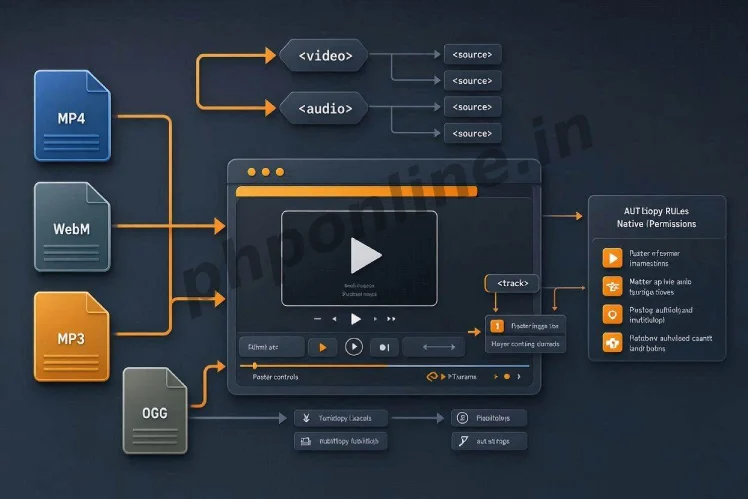
Not all web browsers support every media container format due to licensing patents and codec variations. Providing multiple container options guarantees universal cross-browser playback across all devices.
A. Popular Video Formats & Codecs
| Container Format | Video / Audio Codec | MIME Type Declaration | Browser Support Status |
|---|---|---|---|
| MP4 (.mp4) | H.264 / AAC | video/mp4 | Universal (100%): Chrome, Firefox, Safari, Edge, Mobile iOS/Android. |
| WebM (.webm) | VP8 or VP9 / Vorbis or Opus | video/webm | Excellent support across modern desktop and Android browsers (Royalty-free format). |
| OGG (.ogv) | Theora / Vorbis | video/ogg | Supported in Firefox, Chrome, and Opera (Legacy fallback). |
B. Popular Audio Formats & Codecs
| Container Format | Audio Codec | MIME Type Declaration | Browser Support Status |
|---|---|---|---|
| MP3 (.mp3) | MPEG Layer III | audio/mpeg | Universal (100%): Industry standard for web audio streaming. |
| WAV (.wav) | PCM Uncompressed | audio/wav | Supported across all browsers (High quality, but large file sizes). |
| OGG (.ogg) | Vorbis Audio | audio/ogg | Supported in Chrome, Firefox, Opera, and Android browsers. |
4. Providing Multiple Source Fallbacks with the <source> Tag
To ensure your media plays smoothly regardless of the user’s browser, remove the src attribute from the main <video> or <audio> tag and nest multiple child <source> tags inside. The browser will test sources from top to bottom and play the first format it supports:
Multi-Source Video Example with Fallback Text
<!-- Cross-Browser Compatible Video Player -->
<video controls width="800" height="450" poster="images/course-cover.jpg" preload="metadata">
    <!-- Primary WebM format for modern browsers -->
    <source src="media/tutorial-overview.webm" type="video/webm">

    <!-- Universal MP4 format fallback -->
    <source src="media/tutorial-overview.mp4" type="video/mp4">

    <!-- Fallback message displayed only if browser supports neither HTML5 format -->
    <p>
        Your browser does not support HTML5 video playback.
        <a href="media/tutorial-overview.mp4" download>Download MP4 Video File directly</a>.
    </p>
</video>
Want to test this HTML markup live? Try running it in our Online HTML Editor.
Multi-Source Audio Example
<!-- Cross-Browser Compatible Audio Player -->
<audio controls preload="none">
    <source src="media/lecture-audio.mp3" type="audio/mpeg">
    <source src="media/lecture-audio.ogg" type="audio/ogg">
    Your browser does not support native HTML5 audio elements.
</audio>
Want to test this HTML markup live? Try running it in our Online HTML Editor.
5. Autoplay Rules and Background Loop Videos
Many modern web designs use muted background videos in hero header banners. To make a video play automatically across mobile and desktop devices without being blocked by browser policy checks, you must combine four specific attributes: autoplay, muted, loop, and playsinline:
<!-- Hero Section Muted Background Video Banner -->
<video autoplay muted loop playsinline width="1280" height="720" poster="images/hero-fallback.jpg">
    <source src="media/background-waves.mp4" type="video/mp4">
</video>
Want to test this HTML markup live? Try running it in our Online HTML Editor.
Validating HTML Media Code Standards
Unclosed media tags, invalid MIME type declarations, and broken video paths can disrupt user interaction and trigger accessibility errors. Always validate your markup using automated standard tools like our HTML Validator Tool to verify compliance with W3C web standards.
Summary Comparison of HTML Media Attributes
| Attribute Name | Element Application | Value Type | Primary Function & Purpose |
|---|---|---|---|
controls | <audio> & <video> | Boolean flag | Renders native browser player UI controls (play button, volume slider, seek bar). |
poster | <video> Only | URL Path string | Specifies a static thumbnail preview image displayed inside video box before playback. |
muted | <audio> & <video> | Boolean flag | Silences audio output. Required to enable browser autoplay rules. |
autoplay | <audio> & <video> | Boolean flag | Starts playback automatically as soon as page finishes loading. |
loop | <audio> & <video> | Boolean flag | Restarts playback automatically from the beginning upon reaching end of track. |
preload | <audio> & <video> | none / metadata / auto | Specifies how much media data the browser should buffer before user clicks play. |
Troubleshooting Common HTML Media Playback Errors
| Observed Playback Error | Probable Cause | Recommended Solution |
|---|---|---|
| Video or audio fails to play automatically on page load | Browser policy blocking autoplay media that contains unmuted audio streams. | Add the muted attribute alongside autoplay (e.g., <video autoplay muted>). |
| Audio plays but no video image renders on screen (Black screen) | Video was encoded using an unsupported codec (e.g., H.265 / HEVC instead of H.264). | Re-encode video files using standard H.264 video codec and AAC audio codec in MP4 container format. |
| Player box renders on screen but buttons are non-functional | Forgetting to include the controls attribute inside the <video> or <audio> tag. | Add the controls attribute to display interactive browser player controls. |
| iOS Safari forces video into automated full-screen mode | Missing mobile inline playback directive attribute. | Include the playsinline attribute on the <video> tag. Validate syntax with our HTML Validator Tool. |
Frequently Asked Questions (FAQ)
Q1: What are HTML audio and video elements and why are they used?
HTML audio and video elements (<audio> and <video>) are native HTML5 tags used to stream sound tracks, voice notes, and video recordings directly inside web browsers without requiring external plugins like Flash.
Q2: Why doesn’t video autoplay work on mobile browsers?
Web browsers block unmuted autoplay video and audio streams to prevent unexpected noise and protect mobile users from unintended cellular data usage. To allow autoplay to function, you must silence the track using the muted attribute.
Q3: What is the purpose of the poster attribute in HTML video?
The poster attribute specifies an image file URL displayed as a preview thumbnail image inside the video player container before the video begins playing.
Q4: Why should you use multiple <source> tags inside an audio or video container?
Different web browsers support different file formats and codecs. Providing multiple <source> tags (e.g., MP4 and WebM for video) ensures universal playback across all desktop browsers, Android devices, and iOS devices.
Next Steps & Official References
Consult official technical web standards on the MDN Official Video Element Documentation (mozilla.org).
Before publishing your multimedia web pages, validate your markup syntax using our PHPOnline HTML Validator Tool.
Ready to move to Module 3? Proceed directly to the first lesson in Module 3: Next Lesson: HTML Lists (Ordered, Unordered & Description) →
# Summary
Here is what you've learned in this lesson:
- Easy HTML Audio and Video Guide: 5 Core Media Attributes & Examples
- Overview: Understanding HTML Audio and Video & Native Multimedia
- Prerequisites Before Embedding Multimedia Files
- 1. Embedding Sound Files with the HTML <audio> Tag
- 2. Embedding Video Streams with the HTML <video> Tag
- 3. Formats and Container Compatibility
- 4. Providing Multiple Source Fallbacks with the <source> Tag
- 5. Autoplay Rules and Background Loop Videos
- Validating HTML Media Code Standards
- Summary Comparison of HTML Media Attributes
- Troubleshooting Common HTML Media Playback Errors
- Frequently Asked Questions (FAQ)
- Next Steps & Official References
Continue to the next lesson and learn more about HTML Lists.