
HTML Images
Easy HTML Images Guide: 6 Essential Attributes & Examples
Master web graphics with this complete HTML images guide. Learn img src, alt text, width and height attributes, responsive loading, and SEO best practices.
Estimated Read Time: 19 Minutes | Category: Web Development Fundamentals
Overview: Understanding HTML Images & Web Graphics Integration
Quick HTML Images Summary:
- Visual Communication Engine: The
<img>tag embeds raster graphics, vector illustrations, photos, and icons directly into HTML web pages. - Self-Closing Void Element: The
<img>element is a self-closing void tag that does not enclose text or require a closing</img>tag. - Mandatory Attributes: Every image tag requires a source path (
src="...") to locate the image file and descriptive alternative text (alt="...") for accessibility and SEO. - Dimension Control: Specifying
widthandheightattributes prevents layout shifts (CLS) while web pages load in browser viewports. - Performance Optimization: Using modern image formats (WebP, SVG) and the
loading="lazy"attribute accelerates web page load speeds significantly.
Welcome to Lesson 6 of our structured Web Development curriculum. Following our previous lesson on Easy HTML Links Guide: 5 Core Hyperlink Attributes & Examples, you now understand how to build web page navigation networks using anchor tags. The next vital step in front-end design is enhancing visual engagement using HTML images.
A website consisting purely of text headings and plain paragraphs quickly tires human readers. High-quality visual assets—such as product photographs, infographics, logos, diagrams, and UI icons—break up dense text blocks, increase user dwell time, and communicate complex technical concepts instantly.
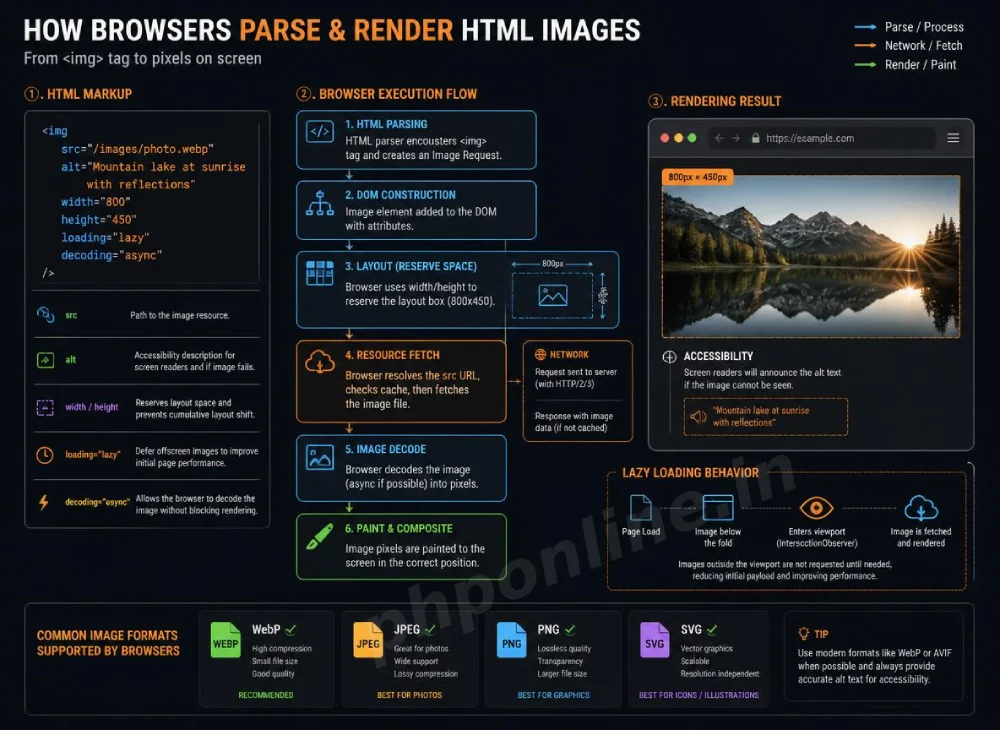
In this comprehensive HTML images tutorial, we will explore <img> tag syntax, mandatory src and alt attributes, dimension controls, responsive scaling rules, modern image formats, image hyperlinks, and performance optimization techniques.
Prerequisites Before Embedding Web Graphics
To test the hands-on code examples in this HTML images guide, verify that your development environment meets these basic requirements:
- Web Browser: A modern web browser such as Google Chrome, Mozilla Firefox, Microsoft Edge, or Apple Safari.
- Code Editor: A text editor such as Visual Studio Code, Sublime Text, or Notepad++.
- Directory Structure: An
imagessubfolder containing sample image files (e.g., JPEG, PNG, or WebP format).
If you need to review how relative file paths navigate through website folders, visit our previous guide on Easy HTML Links Guide: 5 Core Hyperlink Attributes & Examples.
1. Anatomy of the HTML <img> Tag (src and alt)
The <img> tag is a self-closing void element. Instead of wrapping text, it relies on inline attributes to locate and render visual files.
The Two Mandatory Attributes:
src(Source): Specifies the absolute URL or relative file path to the image asset stored on the server.alt(Alternative Text): Provides a clear textual description of the image content for screen readers and search engines, or displays fallback text if the image file fails to load.
<!-- Standard HTML Image Tag Structure -->
<img src="images/server-architecture.webp" alt="Diagram showing client browser connecting to a backend server">
Want to test this HTML markup live? Try running it in our Online HTML Editor.
Why Alt Text Is Critical for Accessibility & SEO
Alternative text serves three vital functions in modern web development:
- Screen Reader Accessibility: Visually impaired users rely on assistive screen reader software that reads the
alttext aloud when navigating web pages. - Image Load Fallback: If a user has a slow internet connection or the image URL is broken, the browser displays the
altstring inside a placeholder frame. - Search Engine Indexing: Search engine crawlers (like Googlebot) cannot “see” images directly. They read
alttext to index images inside Google Images search results.
2. Image Dimensions (width and height) & Cumulative Layout Shift
Always specify explicit width and height attributes (measured in pixels without px units) inside your <img> tags:
<!-- Image Tag with Explicit Dimensions -->
<img src="images/logo.png" alt="PHPOnline Platform Logo" width="300" height="80">
Want to test this HTML markup live? Try running it in our Online HTML Editor.
Preventing Cumulative Layout Shift (CLS)
When a browser downloads an HTML file, it renders text content instantly while image files download in the background. If image dimensions are omitted, the browser sets the image placeholder height to 0 pixels. When the image finishes downloading seconds later, the browser suddenly jumps and pushes surrounding text downwards.
This annoying jump is called Cumulative Layout Shift (CLS). By defining width and height attributes, you instruct the browser to reserve the exact space required on screen before the image file finishes downloading.
3. Absolute vs. Relative Image File Paths
Just like hyperlinks, image source paths (src) are categorized into absolute URLs or relative paths:
| Path Category | Sample Syntax | Location Description | Primary Application |
|---|---|---|---|
| Absolute URL | src="https://cdn.example.com/logo.webp" | External domain or CDN protocol link. | Hotlinking to external Content Delivery Networks (CDNs) or media hosts. |
| Relative Path | src="images/hero.jpg" or src="../media/hero.jpg" | Local file path inside project server directories. | Referencing local images hosted on your website server. |
Relative Path Traversal Examples:
<!-- Image in the same folder as the HTML file -->
<img src="banner.jpg" alt="Website Banner" width="800" height="200">

<!-- Image inside an 'images' subfolder -->
<img src="images/banner.jpg" alt="Website Banner" width="800" height="200">

<!-- Image located one folder level up in parent directory -->
<img src="../assets/banner.jpg" alt="Website Banner" width="800" height="200">
Want to test this HTML markup live? Try running it in our Online HTML Editor.
4. Choosing the Best Web Image Formats
Selecting the appropriate image file format directly impacts page load speed and visual crispness:
| Image Format | Compression Type | Transparency Support? | Best Application Scenario |
|---|---|---|---|
| WebP | Modern Lossy / Lossless | Yes | Best Overall: Modern standard offering high compression with tiny file sizes. |
| SVG | Vector Graphics | Yes | Logos, icons, and UI illustrations that scale infinitely without pixelation. |
| JPEG / JPG | Lossy Compression | No | Complex photographs and detailed images with rich color gradients. |
| PNG | Lossless Compression | Yes | Graphics requiring sharp transparent backgrounds or precise text. |
| GIF | Indexed 256 Colors | Yes | Short animated sequences and basic low-color graphics. |
5. Modern Image Optimization: Lazy Loading (loading=”lazy”)
When a web page contains dozens of images (such as an e-commerce catalog or photo gallery), downloading every image simultaneously delays initial page load times.
The native HTML5 loading="lazy" attribute defers loading off-screen images until the user scrolls down near their position in the viewport:
<!-- Lazy-loaded Image for Off-screen Assets -->
<img src="images/footer-gallery.webp" alt="Community Workshop Event" width="600" height="400" loading="lazy">
Want to test this HTML markup live? Try running it in our Online HTML Editor.
Performance Rule: Never apply loading="lazy" to your top-fold hero image or site logo. Top-fold assets should load immediately to improve Largest Contentful Paint (LCP) performance scores.
6. Creating Image Hyperlinks
To turn an image into a clickable link (such as clicking a site logo to return home or clicking a thumbnail to view a product), wrap the <img> tag inside an <a> anchor container:
<!-- Clickable Image Hyperlink -->
<a href="https://phponline.in/tutorials/html/html-introduction/" title="Go to HTML Introduction">
    <img src="images/html5-badge.svg" alt="HTML5 Learning Badge" width="120" height="120">
</a>
Want to test this HTML markup live? Try running it in our Online HTML Editor.
Validating HTML Image Code Standards
Missing alternative text, broken paths, and invalid attribute syntax can trigger accessibility and SEO flags. Always validate your markup using automated standard tools like our HTML Validator Tool to verify compliance with W3C web standards.
Summary Comparison of Core HTML Image Attributes
| Attribute Identifier | Sample Syntax | Required? | Primary Application Scenario |
|---|---|---|---|
src | src="photo.webp" | Mandatory | Defines the exact URL or local file path to the target image file. |
alt | alt="Description" | Mandatory | Provides accessibility descriptions for screen readers and SEO indexing. |
width | width="600" | Recommended | Reserves horizontal space to prevent layout shifts (CLS). |
height | height="400" | Recommended | Reserves vertical space to prevent layout shifts (CLS). |
loading | loading="lazy" | Optional | Defers downloading off-screen images until the user scrolls near them. |
title | title="Tooltip text" | Optional | Displays a pop-up text tooltip when a user hovers over the image. |
Troubleshooting Common HTML Image Errors
| Observed Image Error | Probable Cause | Recommended Solution |
|---|---|---|
| Broken image icon displays with alt text frame | Incorrect file path in src attribute, misspelled file extension (e.g., .jpeg vs .jpg), or case sensitivity mismatch on Linux servers. | Check relative folder paths and exact filename spellings. Validate code using our HTML Validator Tool. |
| Image appears stretched or distorted on screen | Setting width and height attributes that do not match the image’s original aspect ratio. | Maintain original aspect ratio proportion, or set one dimension in CSS using height: auto;. |
| Web page text jumps around while loading (High CLS score) | Omitting explicit width and height attributes on <img> tags. | Add explicit width and height attributes to reserve layout dimensions. |
| Page loads very slowly on mobile networks | Using uncompressed, massive image files (e.g., 5MB raw camera JPEGs). | Compress images using WebP/SVG formats and apply loading="lazy" to below-the-fold images. |
Frequently Asked Questions (FAQ)
Q1: What are HTML images and why are they important?
HTML images are embedded graphic elements created using the <img> tag. They visually enrich web pages, break up long text blocks, illustrate technical concepts, and enhance user engagement across desktop and mobile devices.
Q2: Why is the alt attribute mandatory for all HTML images?
The alt attribute provides a descriptive text alternative for accessibility screen readers used by visually impaired visitors. It also serves as fallback text if an image breaks and provides contextual signals for search engines to index images in Google Search.
Q3: What is Cumulative Layout Shift (CLS) and how do width and height attributes prevent it?
Cumulative Layout Shift occurs when web page elements jump unexpectedly while media files download. Defining explicit width and height attributes allows the browser to reserve the exact layout space required before the image file finishes loading.
Q4: How does loading=”lazy” improve web page performance?
The loading="lazy" attribute instructs the browser to defer fetching off-screen images until the user scrolls down near their position. This reduces initial page payload size and speeds up initial page load times.
Next Steps & Official References
Consult official technical web standards on the MDN Official Image Element Documentation (mozilla.org).
Before publishing your web page, validate your image markup syntax using our PHPOnline HTML Validator Tool.
Ready for the final lesson in Module 2? Proceed directly to the next lesson in Module 2: Next Lesson: HTML Audio and Video Elements →
# Summary
Here is what you've learned in this lesson:
- Easy HTML Images Guide: 6 Essential Attributes & Examples
- Overview: Understanding HTML Images & Web Graphics Integration
- Prerequisites Before Embedding Web Graphics
- 1. Anatomy of the HTML <img> Tag (src and alt)
- 2. Image Dimensions (width and height) & Cumulative Layout Shift
- 3. Absolute vs. Relative Image File Paths
- 4. Choosing the Best Web Image Formats
- 5. Modern Image Optimization: Lazy Loading (loading="lazy")
- 6. Creating Image Hyperlinks
- Validating HTML Image Code Standards
- Summary Comparison of Core HTML Image Attributes
- Troubleshooting Common HTML Image Errors
- Frequently Asked Questions (FAQ)
- Next Steps & Official References
Continue to the next lesson and learn more about HTML Entities.