
JavaScript Introduction
Easy JavaScript Introduction Guide: 5 Core Programming Concepts & Examples
Master modern web interactivity with this complete JavaScript introduction guide. Learn client-side scripting, V8 execution engines, DOM control, and ES6+ features.
Estimated Read Time: 21 Minutes | Category: Web Development Fundamentals
Overview: Complete JavaScript Introduction & Client-Side Scripting
Quick JavaScript Introduction Summary:
- Web Interactivity Engine: JavaScript (JS) is the lightweight, interpreted programming language that powers dynamic interactivity, client-side logic, and event-driven behavior across modern web browsers.
- The Third Web Pillar: While HTML structures page content and CSS formats visual styling, JavaScript transforms static web pages into responsive, interactive web applications.
- Client-Side Execution: JavaScript code executes directly inside the user’s web browser using high-performance engines (such as Google Chrome’s V8 engine or Mozilla’s SpiderMonkey).
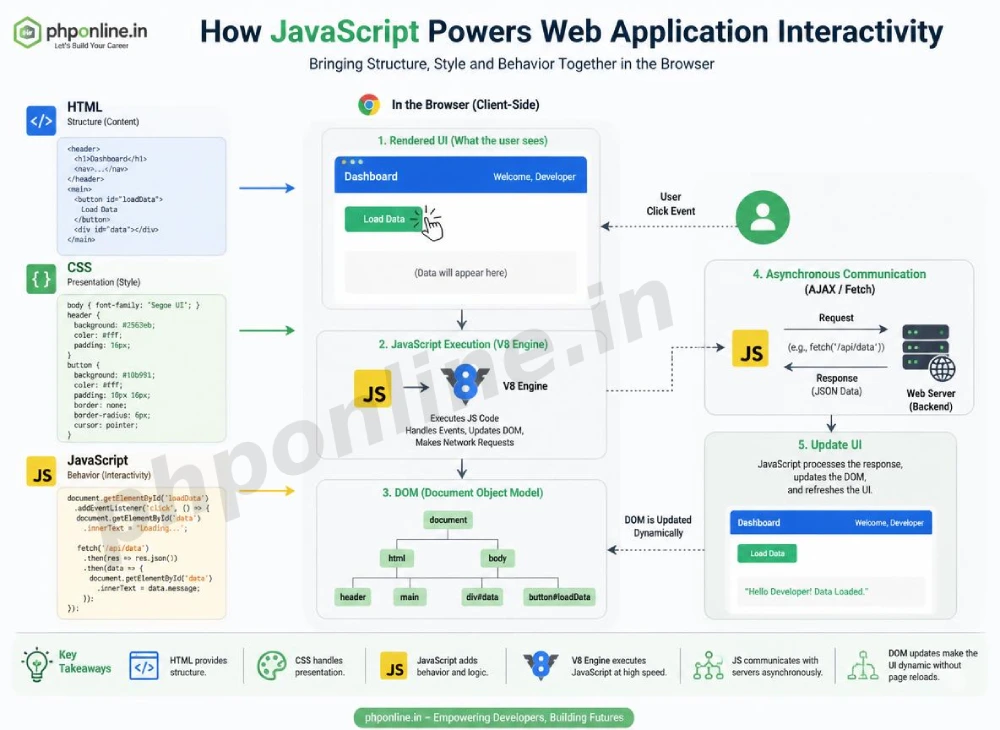
- DOM Manipulation: JavaScript can dynamically modify HTML elements, alter CSS styles, validate web forms before submission, and respond to real-time user mouse clicks and keyboard events.
- Full-Stack Versatility: Thanks to modern runtimes like Node.js, JavaScript has evolved from a browser-only scripting language into a universal language capable of building backend servers, mobile apps, and desktop software.
Welcome to Lesson 1 of our structured Web Development curriculum. If you have already completed our HTML Introduction Guide and CSS Introduction Guide, you know that HTML provides the structural skeleton of web pages while CSS formats typography, colors, and responsive layouts. The final essential pillar of front-end engineering is adding dynamic functionality using a complete JavaScript introduction.
Without JavaScript, the web would consist entirely of static documents that cannot react to user actions without performing full page reloads. JavaScript is the technology that allows websites to display animated image carousels, open popup modal dialogs, update shopping cart counters, validate form inputs in real time, and fetch live data from server APIs asynchronously without reloading the page.
In this comprehensive JavaScript introduction tutorial, we will explore core language concepts, how browser JavaScript engines work, embedding script tags into HTML, client-side versus server-side execution, browser developer console debugging, and hands-on code examples.
Prerequisites Before Learning JavaScript
To follow along with the hands-on code examples in this JavaScript introduction guide, verify that your development environment meets these basic requirements:
- Web Browser: A modern web browser equipped with Developer Tools (Google Chrome, Mozilla Firefox, Microsoft Edge, or Apple Safari).
- Code Editor: A text editor such as Visual Studio Code, Sublime Text, or Notepad++.
- Front-End Foundations: Solid understanding of basic HTML tags, attributes, and CSS styling rules.
If you need to review how HTML semantic containers structure web pages before writing scripts to manipulate them, visit our previous guide on Easy HTML Semantic Layouts Guide: 7 Core Structural Tags & Examples.
1. What Is JavaScript? Understanding the Programming Language of the Web
JavaScript was created in 1995 by Brendan Eich at Netscape Communications to add dynamic scripting capabilities to web browsers. Today, JavaScript is standardized under the **ECMAScript (ES)** specification and is supported natively by 100% of modern web browsers.
Key Language Characteristics of JavaScript:
- High-Level: Automatically handles memory management and garbage collection, allowing developers to focus on application logic.
- Interpreted / JIT-Compiled: Web browsers compile JavaScript code into machine code Just-In-Time (JIT) right before execution, enabling blazingly fast script performance.
- Dynamic Typing: Variables do not require strict type definitions; data types are determined automatically at runtime.
- Event-Driven: Listens for and reacts to user interactions (such as button clicks, mouse movements, scrolling, or key presses).
- Multi-Paradigm: Supports object-oriented, imperative, and functional programming styles.
The Web Development Triad: HTML, CSS, and JavaScript
| Front-End Layer | Primary Function | Analogy (Building Construction) | Sample Code Syntax |
|---|---|---|---|
| HTML | Defines page content structure and semantic meaning. | The Concrete Foundation & Walls | <button id="btn">Click Me</button> |
| CSS | Controls visual appearance, layout colors, and fonts. | The Paint, Interior Design & Styling | #btn { background: #0073aa; } |
| JavaScript | Adds dynamic interactivity, state logic, and events. | The Electrical Wiring & Plumbing Systems | btn.addEventListener('click', ...); |
2. How JavaScript Runs in Web Browsers
When you open a webpage, the browser downloads the HTML document, parses the DOM tree, loads CSS styles, and passes embedded or external JavaScript files into its built-in **JavaScript Engine**:
- V8 Engine: Developed by Google for Chrome, Node.js, and Microsoft Edge.
- SpiderMonkey Engine: Developed by Mozilla for Firefox.
- JavaScriptCore (SquirrelFish): Developed by Apple for Safari.
Inside the engine, the script is parsed into an Abstract Syntax Tree (AST), compiled into bytecode, and executed inside a single-threaded execution context managed by an **Event Loop**.
3. Three Ways to Include JavaScript in HTML
Just like CSS, JavaScript can be inserted into web pages using three methods: **External Script Files**, **Internal Script Blocks**, and **Inline Event Attributes**.
Method 1: External JavaScript File (.js) — Recommended Best Practice
Placing JavaScript code inside a separate .js file keeps HTML markup clean and allows script caching across multiple pages.
Link external JavaScript files using the <script src="..."> tag placed right before the closing </body> tag or inside the <head> tag using the defer attribute:
<!-- HTML File (index.html) -->
<!DOCTYPE html>
<html lang="en">
<head>
    <meta charset="UTF-8">
    <title>External JavaScript Example</title>
    <!-- Defer attribute ensures script runs AFTER HTML document is parsed -->
    <script src="js/app.js" defer></script>
</head>
<body>
    <h1 id="heading">Hello World</h1>
</body>
</html>
// External JavaScript File (js/app.js)
console.log("External script executed successfully!");
// Target HTML heading element and change text dynamically
document.getElementById("heading").textContent = "Updated via External JavaScript!";Want to test this HTML and JavaScript markup live? Try running it in our Online Code Editor.
Method 2: Internal Script Block
Internal JavaScript is placed inside a <script> tag directly within the HTML document:
<!DOCTYPE html>
<html lang="en">
<head>
    <meta charset="UTF-8">
    <title>Internal JavaScript Example</title>
</head>
<body>
    <button id="demo-btn">Click Me</button>

    <!-- Internal JavaScript Block placed before closing body tag -->
    <script>
        const button = document.getElementById("demo-btn");
        button.addEventListener("click", function() {
            alert("Internal JavaScript event triggered!");
        });
    </script>
</body>
</html>
Want to test this code live? Try running it in our Online Code Editor.
Method 3: Inline JavaScript Event Attributes (Discouraged)
Inline JavaScript writes code directly inside HTML opening tags using event handler attributes (such as onclick or onmouseover). Inline scripting should be avoided because it mixes logic with structure:
<!-- Inline JavaScript Example (Avoid in production) -->
<button onclick="alert('Inline script executed!')">Inline Click</button>
4. Summary Comparison of Script Insertion Methods
| Insertion Method | Location in Code | Maintainability | Primary Application Scenario |
|---|---|---|---|
| External File (.js) | Linked via <script src="..." defer> | Excellent (Modular) | Industry Standard: Managing interactive application logic across pages. |
| Internal Block | Inside <script> tag before </body> | Moderate | Single-page quick scripts or small standalone code demos. |
| Inline Attribute | Inside HTML element tag (e.g., onclick="...") | Poor (Unmaintainable) | Quick debugging tests only; bad practice for production apps. |
5. Your First JavaScript Program: Writing to the Console and DOM
JavaScript provides several ways to output information to users or developers:
1. Writing to the Browser Developer Console (console.log)
The console.log() statement prints diagnostic text to the web browser’s Developer Console (F12 or Ctrl + Shift + I). It is the primary tool used by developers to debug code:
console.log("Welcome to JavaScript Programming!");
console.warn("This is a diagnostic warning message.");
console.error("This is a simulated error message.");
2. Manipulating the Web Page DOM (document.write / textContent)
JavaScript can interact directly with HTML elements rendered on screen:
// Modifying text content of an HTML element
document.getElementById("status-text").textContent = "System Active";

// Displaying a popup alert box
alert("Welcome to PHPOnline JavaScript Course!");
Want to test these JavaScript outputs live? Try running them in our Online Code Editor.
6. Complete Interactive Hands-on Demonstration Example
Below is a complete, working HTML document featuring interactive JavaScript DOM manipulation, button click event listeners, dynamic style changes, and console output combined:
<!DOCTYPE html>
<html lang="en">
<head>
    <meta charset="UTF-8">
    <meta name="viewport" content="width=device-width, initial-scale=1.0">
    <title>JavaScript Introduction Demonstration</title>

    <style>
        body {
            font-family: Arial, sans-serif;
            background-color: #f4f6f9;
            color: #333;
            padding: 30px;
            max-width: 600px;
            margin: 0 auto;
        }

        .card {
            background-color: #ffffff;
            border: 1px solid #e0e0e0;
            border-radius: 8px;
            padding: 25px;
            text-align: center;
            box-shadow: 0 4px 12px rgba(0,0,0,0.05);
        }

        .btn-interactive {
            background-color: #0073aa;
            color: #ffffff;
            border: none;
            padding: 12px 24px;
            font-size: 16px;
            border-radius: 4px;
            cursor: pointer;
            transition: background-color 0.3s ease;
        }

        .btn-interactive:hover {
            background-color: #005177;
        }

        .output-box {
            margin-top: 20px;
            padding: 15px;
            border-radius: 4px;
            background-color: #e3f2fd;
            color: #0d47a1;
            font-weight: bold;
        }
    </style>
</head>
<body>

    <div class="card">
        <h2>Interactive JavaScript Demo</h2>
        <p style="margin-bottom: 20px;">Click the button below to execute client-side JavaScript logic!</p>

        <button id="action-btn" class="btn-interactive">Click to Toggle State</button>

        <div id="result-message" class="output-box" style="display: none;">
            JavaScript executed dynamically without a page reload!
        </div>
    </div>

    <!-- Client-Side Script -->
    <script>
        // Log startup message to Developer Console
        console.log("JavaScript Introduction script initialized.");

        // Target DOM elements
        const actionButton = document.getElementById("action-btn");
        const resultMessage = document.getElementById("result-message");

        // Attach event listener
        actionButton.addEventListener("click", function() {
            if (resultMessage.style.display === "none") {
                resultMessage.style.display = "block";
                actionButton.textContent = "Click to Hide Message";
                console.log("User toggled message visibility: ON");
            } else {
                resultMessage.style.display = "none";
                actionButton.textContent = "Click to Toggle State";
                console.log("User toggled message visibility: OFF");
            }
        });
    </script>

</body>
</html>
Want to test this HTML and JavaScript code live? Try running it in our Online Code Editor.
Validating HTML and JavaScript Code Standards
Syntax errors inside JavaScript script blocks (such as unclosed quotes, missing parentheses, or misspelled DOM method names like getelementbyid instead of getElementById) will stop script execution.
Before publishing your web application code, validate your HTML and script tags using our automated PHPOnline HTML Validator Tool.
Troubleshooting Common Beginner JavaScript Errors
| Observed JavaScript Issue | Probable Cause | Recommended Solution |
|---|---|---|
| Uncaught TypeError: Cannot read properties of null (reading ‘addEventListener’) | The script ran in the <head> before the HTML DOM elements finished loading into memory. | Move the <script> tag right before the closing </body> tag, or add the defer attribute to external script links. |
| Uncaught ReferenceError: variable is not defined | Misspelling a variable or function name, or attempting to access a variable outside its declared scope. | Check spelling in Developer Console (F12) and verify variable declarations. |
| Script code appears as plain text on the webpage | Forgetting to enclose internal JavaScript code inside opening <script> and closing </script> tags. | Wrap all JavaScript code blocks inside explicit <script> tags. Validate code with our HTML Validator Tool. |
External app.js file fails to execute | Incorrect file path in <script src="..."> or misspelling the .js extension. | Check relative file paths relative to the HTML document location. |
Frequently Asked Questions (FAQ)
Q1: What is a JavaScript introduction and why is JavaScript essential for web development?
A JavaScript introduction covers the core concepts of client-side web programming. JavaScript is essential because it is the only native programming language supported by web browsers that adds dynamic interactivity, event handling, DOM manipulation, and asynchronous data processing to web pages.
Q2: What is the difference between Java and JavaScript?
Java and JavaScript are completely different programming languages with different syntax and applications. Java is a compiled, object-oriented backend programming language used for enterprise applications and Android apps. JavaScript is an interpreted/JIT-compiled scripting language primarily used for browser interactivity and modern web development.
Q3: What is client-side scripting in JavaScript?
Client-side scripting means that JavaScript code is downloaded to the user’s computer and executed locally inside their web browser engine (such as Google Chrome’s V8 engine), rather than executing on the backend web server before page delivery.
Q4: Why should external JavaScript files be linked using the defer attribute?
Linking external scripts with <script src="app.js" defer></script> instructs the browser to download the script file asynchronously in the background without pausing HTML DOM parsing, ensuring fast page load speeds and preventing “element null” script errors.
Next Steps & Official References
Consult official technical web standards on the MDN Official JavaScript Introduction Guide (mozilla.org).
Before publishing your web page layouts, validate your code syntax using our PHPOnline HTML Validator Tool.
Ready for the next lesson in sequence? Proceed directly to the next lesson in Module 1: Next Lesson: JavaScript Syntax, Variables (let, const, var) & Scope →
# Summary
Here is what you've learned in this lesson:
- Easy JavaScript Introduction Guide: 5 Core Programming Concepts & Examples
- Overview: Complete JavaScript Introduction & Client-Side Scripting
- Prerequisites Before Learning JavaScript
- 1. What Is JavaScript? Understanding the Programming Language of the Web
- 2. How JavaScript Runs in Web Browsers
- 3. Three Ways to Include JavaScript in HTML
- 4. Summary Comparison of Script Insertion Methods
- 5. Your First JavaScript Program: Writing to the Console and DOM
- 6. Complete Interactive Hands-on Demonstration Example
- Validating HTML and JavaScript Code Standards
- Troubleshooting Common Beginner JavaScript Errors
- Frequently Asked Questions (FAQ)
- Next Steps & Official References
Continue to the next lesson and learn more about JavaScript Syntax & Variables.