
HTML Semantic Layouts
Easy HTML Semantic Layouts Guide: 7 Core Structural Tags & Examples
Master modern web page structure with this complete HTML semantic layouts guide. Learn header, nav, main, article, section, aside, footer, and SEO benefits.
Estimated Read Time: 21 Minutes | Category: Web Development Fundamentals
Overview: Understanding HTML Semantic Layouts & Structural Meaning
Quick HTML Semantic Layouts Summary:
- Meaningful Document Architecture: HTML semantic layouts use descriptive structural elements that convey explicit meaning about their content to web browsers, search engines, and screen readers.
- 7 Core Layout Regions: Modern semantic page layout relies on
<header>,<nav>,<main>,<article>,<section>,<aside>, and<footer>. - Eliminating “Div Soup”: Replaces generic non-semantic containers with purpose-built structural tags that make HTML source code maintainable and scannable.
- SEO & Search Engine Indexing: Search engine crawlers evaluate semantic layout boundaries to weight core article text higher than peripheral sidebar ads or footer links.
- Accessibility & Screen Reader Landmarks: Assistive technologies convert semantic layout regions into navigational landmarks, allowing visually impaired users to jump directly to primary content.
Welcome to Lesson 10 of our structured Web Development curriculum, marking the final lesson in Module 3: Lists, Tables & Layouts. Following our previous lesson on Easy HTML Tables Guide: 5 Core Structural Tags & Examples, you now understand how to organize two-dimensional data into structured header, body, and footer grids. The next vital step in professional front-end design is structuring complete web pages using HTML semantic layouts.
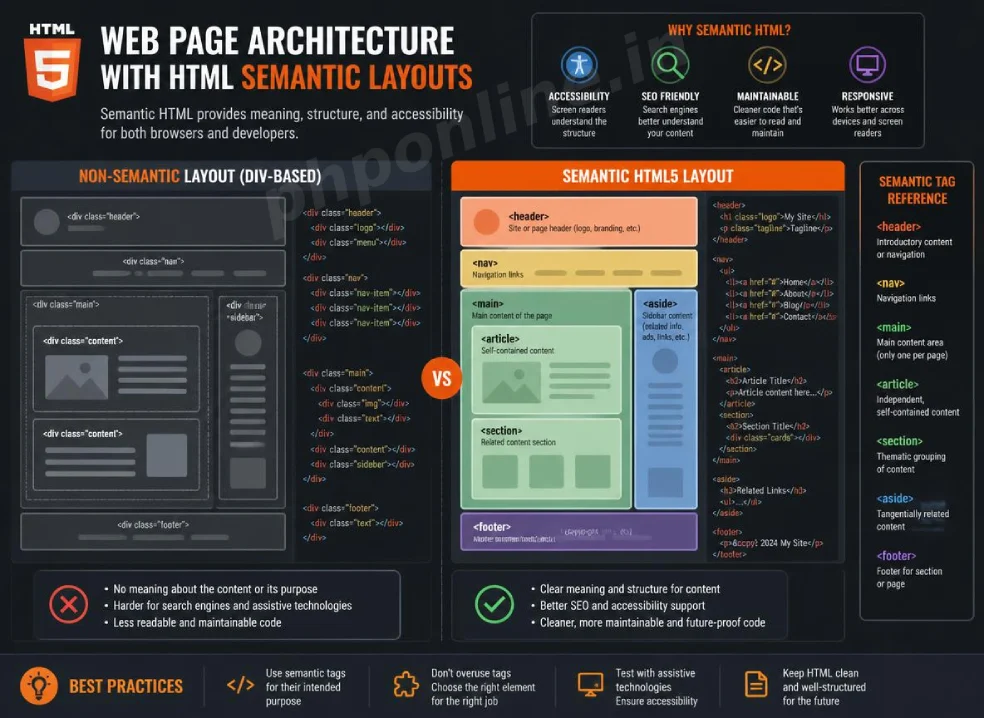
In the early days of web development, programmers built web page layouts using generic, non-semantic <div> tags decorated with custom class names (such as <div class="header"> or <div class="footer">). While this worked visually, the browser and search engines saw only a confusing list of meaningless division boxes. HTML5 introduced standardized semantic elements that explicitly declare their structural purpose inside web documents.
In this comprehensive HTML semantic layouts guide, we will explore why semantic structure matters, the 7 primary semantic layout tags, the structural difference between <article> and <section>, SEO ranking advantages, accessibility benefits, and hands-on code examples.
Prerequisites Before Structuring Page Layouts
To test the hands-on code examples in this HTML semantic layouts tutorial, verify that your development environment meets these basic requirements:
- Web Browser: A modern web browser such as Google Chrome, Mozilla Firefox, Microsoft Edge, or Apple Safari.
- Code Editor: A text editor such as Visual Studio Code, Sublime Text, or Notepad++.
- Foundational Knowledge: Understanding of basic document structure, text headings, paragraphs, and list navigation.
If you need to review how list elements construct navigation menus inside layout headers, visit our previous guide on Easy HTML Lists Guide: 3 Essential List Types & Examples.
1. What Are HTML Semantic Layouts?
The word semantic means “relating to meaning in language.” In web engineering, a semantic element clearly describes its structural meaning to both the developer and the web browser parser.
Non-Semantic vs. Semantic Layout Comparison:
- Non-Semantic Elements: Provide zero clues about their enclosed content. Examples include
<div>(generic block division) and<span>(generic inline wrapper). - Semantic Elements: Explicitly state the exact role of their enclosed content. Examples include
<header>,<nav>,<main>,<article>,<section>,<aside>, and<footer>.
2. The 7 Core Tags of HTML Semantic Layouts
Modern web pages are divided into distinct structural regions. Below are the 7 core elements that form the foundation of HTML semantic layouts:
1. The Header Element (<header>)
The <header> tag represents introductory content for a web page or an individual section. It typically contains branding logos, primary site titles, search bars, or top-level navigation wrappers:
<header>
    <h1>PHPOnline Educational Portal</h1>
    <p>Master Web Development with Hands-On Tutorials</p>
</header>
2. The Navigation Element (<nav>)
The <nav> tag defines a block containing primary navigation links. It signals to search engine crawlers and screen readers that the enclosed hyperlinks form the site’s main navigational menu:
<nav>
    <ul>
        <li><a href="https://phponline.in/tutorials/html/html-introduction/">HTML Intro</a></li>
        <li><a href="https://phponline.in/tutorials/html/html-semantics/">Semantic Layouts</a></li>
        <li><a href="https://phponline.in/online-html-editor/" target="_blank">Online HTML Editor</a></li>
    </ul>
</nav>
Want to test this HTML markup live? Try running it in our Online HTML Editor.
3. The Main Content Element (<main>)
The <main> tag encloses the dominant, unique content of the web page. Content inside <main> must be unique to that specific page and should not contain repeated global elements like site header logos, navigation bars, or footer copyright notices.
Rule: There must be strictly one <main> element per web page, and it must not be nested inside <header>, <nav>, or <footer>.
4. The Article Element (<article>)
The <article> tag wraps a self-contained, independent composition that could theoretically be syndicated or reused independently on another site (such as a blog post, news story, forum thread, or product card):
<article>
    <h2>Understanding Web Development Standards</h2>
    <p>Published on July 31, 2026 by Technical Editorial Team</p>
    <p>Web standards ensure consistency across modern browser engines...</p>
</article>
5. The Section Element (<section>)
The <section> tag defines a standalone thematic grouping of related content within a document, typically starting with its own heading (<h2> through <h6>). Use <section> to break long articles into thematic chapters or separate homepage content areas (such as “Features,” “Testimonials,” or “Pricing”).
6. The Aside Element (<aside>)
The <aside> tag encloses content that is indirectly related to the main surrounding content. It is commonly used for blog sidebars, related article links, author biography boxes, callout call-to-action boxes, or advertisement blocks:
<aside>
    <h3>Interactive Tools for Students</h3>
    <p>Test your layout markup using our automated <a href="https://phponline.in/html-validator/" target="_blank">HTML Validator Tool</a>.</p>
</aside>
7. The Footer Element (<footer>)
The <footer> tag defines the closing bottom region for a page or section. Page-level footers typically contain copyright notices, terms of service links, privacy policy disclosures, social media handles, and contact information:
<footer>
<p>© 2026 PHPOnline Platform. All Rights Reserved.</p>
<p><a href="#top">Back to Top ↑</a></p>
</footer>Want to test this HTML markup live? Try running it in our Online HTML Editor.
3. Article vs. Section: How to Choose Correctly
A common source of confusion when building HTML semantic layouts is choosing between <article> and <section>. Here is the decision rule:
| Structural Element | Self-Contained Rule | Can It Stand Alone? | Primary Application Scenario |
|---|---|---|---|
<article> | Independent composition | Yes — Makes full sense if extracted and posted on another site. | Blog posts, news articles, press releases, user comments, product review cards. |
<section> | Thematic chapter grouping | No — Represents part of a larger whole. | Chapter 1 of a tutorial, “Features” section of a homepage, “Contact” section. |
Nesting Rule: An <article> can contain multiple <section> elements (e.g., a long blog post divided into thematic sub-sections), AND a <section> can contain multiple <article> elements (e.g., a homepage “Latest News” section containing multiple news story article cards).
4. Complete Web Page Layout Example
Below is a complete, well-structured webpage demonstrating proper usage of all 7 semantic layout regions combined:
<!DOCTYPE html>
<html lang="en">
<head>
<meta charset="UTF-8">
<meta name="viewport" content="width=device-width, initial-scale=1.0">
<title>Complete HTML Semantic Layouts Example</title>
</head>
<body>
<!-- Global Header -->
<header>
<h1>PHPOnline Web Development Academy</h1>
<!-- Global Navigation Menu -->
<nav>
<ul>
<li><a href="https://phponline.in/tutorials/html/html-introduction/">HTML Intro</a></li>
<li><a href="https://phponline.in/tutorials/html/html-semantics/">Semantic Layouts</a></li>
<li><a href="https://phponline.in/online-html-editor/" target="_blank">Online HTML Editor</a></li>
</ul>
</nav>
</header>
<hr>
<!-- Primary Main Content Area -->
<main>
<!-- Main Article -->
<article>
<h2>Building Web Page Structures with HTML5 Semantics</h2>
<p>Published by Technical Content Team | Category: Front-End Architecture</p>
<section>
<h3>1. Introduction to Structural Semantics</h3>
<p>Semantic markup replaces meaningless container boxes with purpose-built structural tags.</p>
</section>
<section>
<h3>2. Accessibility Benefits</h3>
<p>Screen readers use landmark tags to navigate web pages efficiently.</p>
</section>
</article>
<!-- Sidebar Content -->
<aside>
<h3>Student Tools</h3>
<p>Validate your code for W3C compliance using our <a href="https://phponline.in/html-validator/" target="_blank">HTML Validator Tool</a>.</p>
</aside>
</main>
<hr>
<!-- Global Footer -->
<footer>
<p>© 2026 PHPOnline Platform. All Rights Reserved.</p>
</footer>
</body>
</html>Want to test this HTML markup live? Try running it in our Online HTML Editor.
5. SEO and Accessibility Advantages of Semantic Layouts
SEO Ranking Advantages
Search engine indexers (like Googlebot) analyze web pages to determine search relevance. When you use semantic tags, Googlebot instantly understands which content represents primary article text (<main> and <article>) versus peripheral content (<aside> and <footer>). This ensures your core keywords are evaluated with higher search weight.
Accessibility Landmark Advantages
Visually impaired users rely on screen reader software to read web pages aloud. Screen readers recognize semantic layout tags as ARIA Landmark Regions:
<header>maps to thebannerlandmark.<nav>maps to thenavigationlandmark.<main>maps to themaincontent landmark.<aside>maps to thecomplementarylandmark.<footer>maps to thecontentinfolandmark.
Screen reader users can press shortcut keys to jump directly to the main landmark, bypassing repetitive header navigation links on every page visit.
Validating HTML Semantic Layout Code
Misnesting layout tags, placing multiple <main> containers, or omitting heading tags inside <section> elements can trigger accessibility and W3C validation errors. Always validate your markup using automated standard tools like our HTML Validator Tool to verify compliance with W3C web standards.
Summary Comparison of Core HTML Semantic Layout Tags
| Tag Identifier | Structural Landmark Role | Allowed Quantity | Primary Application Scenario |
|---|---|---|---|
<header> | Banner / Intro | Multiple allowed | Contains site branding, top titles, or article author metadata. |
<nav> | Navigation | Multiple allowed | Encloses primary site navigation links or table-of-contents lists. |
<main> | Main Content | Strictly One | Encloses unique primary page content (must not wrap global headers/footers). |
<article> | Independent Document | Multiple allowed | Self-contained content blocks (blog posts, news items, product cards). |
<section> | Thematic Chapter | Multiple allowed | Thematic sub-sections of a document (must include a heading tag). |
<aside> | Complementary | Multiple allowed | Sidebars, callout boxes, related article links, or advertisement blocks. |
<footer> | Content Info | Multiple allowed | Page or section footer containing copyright, contact, or legal links. |
Troubleshooting Common Semantic Layout Errors
| Observed Structural Issue | Probable Cause | Recommended Solution |
|---|---|---|
W3C Validation Error: Multiple main elements detected | Placing more than one visible <main> tag on a single HTML document. | Ensure strictly one visible <main> container exists per webpage. Validate code using our HTML Validator Tool. |
| Search engines penalize page for “Div Soup” code bloat | Wrapping every page section in generic <div class="..."> tags instead of semantic tags. | Replace generic divisions with semantic tags like <header>, <main>, <article>, and <footer>. |
| Screen readers fail to announce section landmarks | Creating <section> elements without placing a heading tag (<h2>–<h6>) inside. | Include a descriptive heading tag at the start of every <section> element. |
Global site navigation placed outside <nav> tag | Wrapping top menu links in a generic <div> or <header> without <nav>. | Wrap primary navigation menu link lists inside explicit <nav> elements. |
Frequently Asked Questions (FAQ)
Q1: What are HTML semantic layouts and why are they important?
HTML semantic layouts are structural markup designs that use descriptive HTML5 elements (like <header>, <nav>, <main>, <article>, <section>, <aside>, and <footer>) to convey clear structural meaning. They improve code maintainability, boost SEO keyword weighting, and enable screen reader accessibility landmarks.
Q2: What is the difference between an <article> and a <section> in HTML?
An <article> represents a self-contained, independent composition that makes complete sense if syndicated on another site (such as a blog post or news story). A <section> represents a thematic sub-chapter grouping of related content within a larger document.
Q3: Can a web page contain more than one <header> or <footer> tag?
Yes. You can have a page-level <header> and <footer> for the overall website layout, as well as distinct section-level <header> and <footer> elements inside individual <article> or <section> blocks.
Q4: How do semantic layouts help screen readers and web accessibility?
Screen readers translate semantic layout elements into ARIA landmark regions (like main, navigation, banner, and complementary). Visually impaired users can use keyboard shortcuts to jump directly between these landmarks, bypassing repeated navigation links to read primary article content instantly.
Next Steps & Official References
Consult official technical web standards on the MDN Official HTML Semantics Guide (mozilla.org).
Before publishing your web page layout, validate your semantic code syntax using our PHPOnline HTML Validator Tool.
Ready to move to Module 4? Proceed directly to the first lesson in Module 4: Next Lesson: HTML Form Elements & Interactive Inputs →
# Summary
Here is what you've learned in this lesson:
- Easy HTML Semantic Layouts Guide: 7 Core Structural Tags & Examples
- Overview: Understanding HTML Semantic Layouts & Structural Meaning
- Prerequisites Before Structuring Page Layouts
- 1. What Are HTML Semantic Layouts?
- 2. The 7 Core Tags of HTML Semantic Layouts
- 3. Article vs. Section: How to Choose Correctly
- 4. Complete Web Page Layout Example
- 5. SEO and Accessibility Advantages of Semantic Layouts
- Validating HTML Semantic Layout Code
- Summary Comparison of Core HTML Semantic Layout Tags
- Troubleshooting Common Semantic Layout Errors
- Frequently Asked Questions (FAQ)
- Next Steps & Official References
Continue to the next lesson and learn more about HTML Forms.