
WordPress Installation
WordPress Installation Procedures
- Get the package at http://www.wordpress.org.
- Open your root web server and install WordPress.
- When you extract it, you’ll get a folder called “wordpress [version]”.
- Simply rename the folder “wordpress” to avoid confusion.
Configuration of the database:
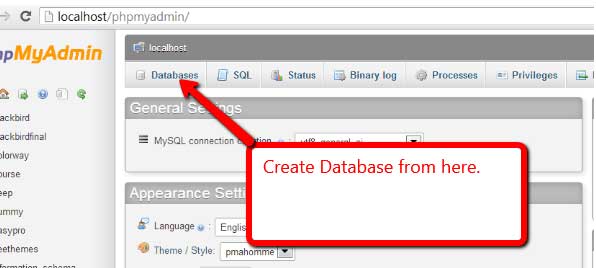
1. Open phpmyadmin and create a database similar to WordPress.
2. Navigate to http://localhost/thedemostore in your browser.
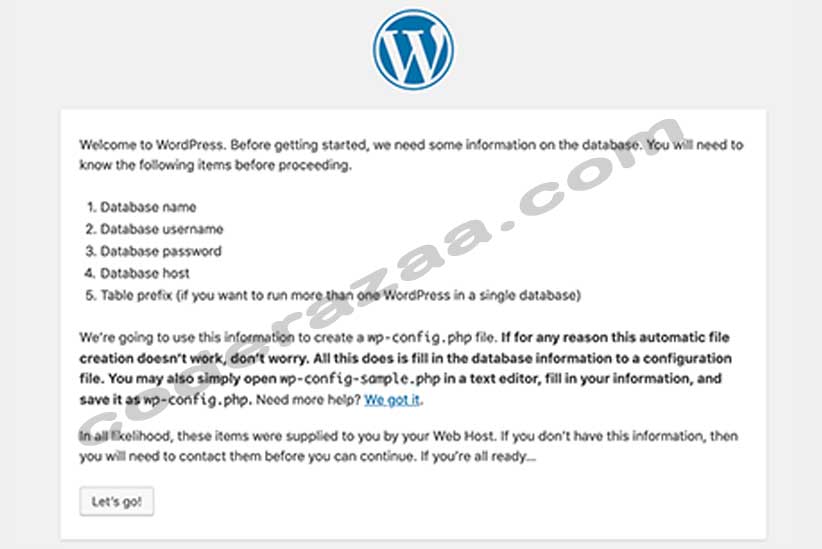
3.Select Let’s go. Look at the image below:
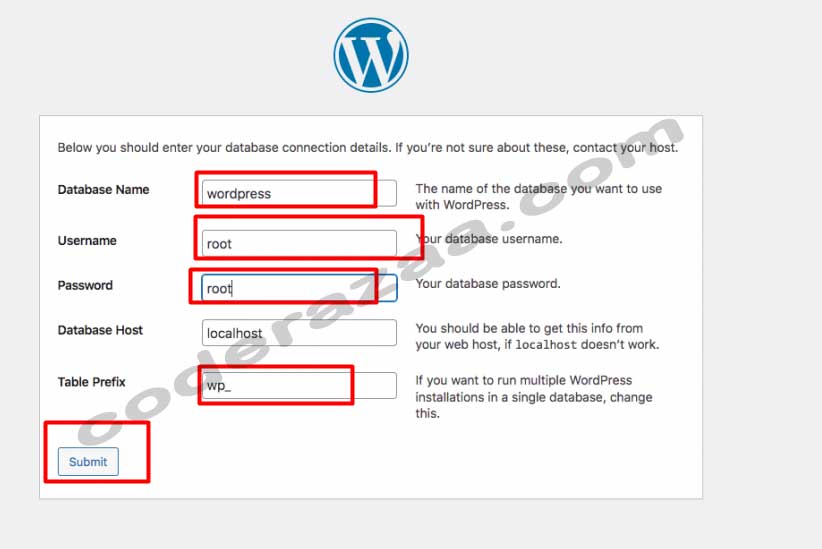
4. Enter the database details you created earlier (wordpress)
root is the database user.
root password
WordPress is the name of the database.
and create when you submit. You should get something like this:
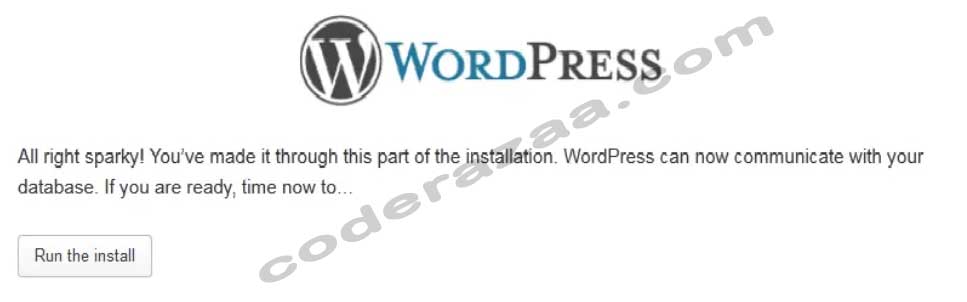
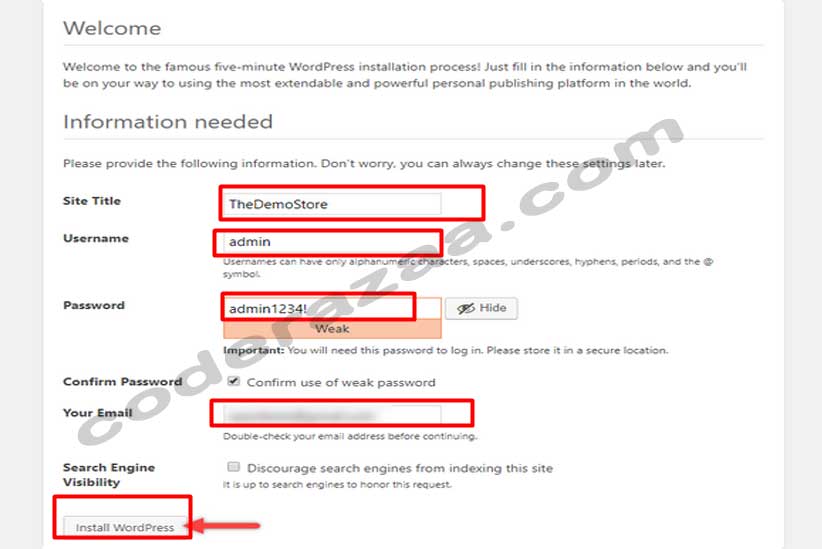
7. Start the installation. You should get something like this:
8. Select Let’s go. You should get something like this:
9. Website name: TheDemoStore
Admin is the user name.
11. Enter your password twice: admin@1234!
12. Your email address: admin@gmail.com
13. Select WordPress installation. You should get something like this:
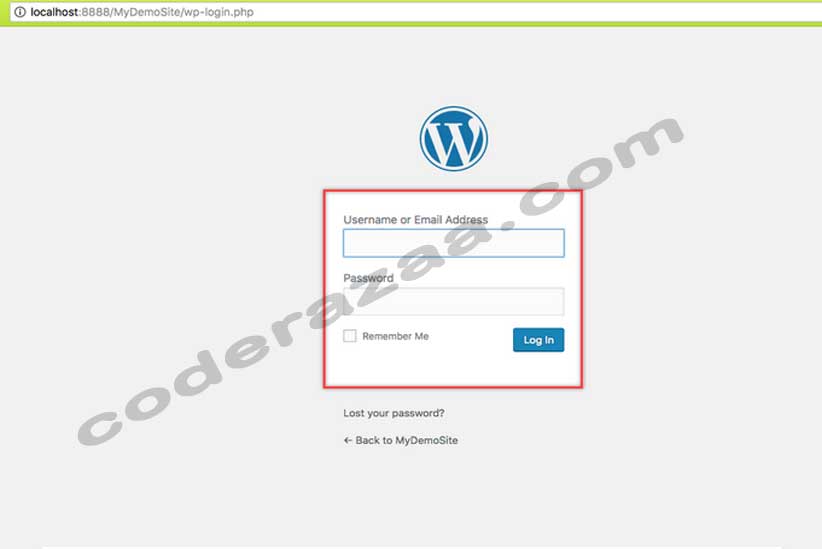
Installation was completed successfully. Please Log In to Customize Your WordPress Website
# Summary
Here is what you've learned in this lesson:
- WordPress Installation Procedures
- Configuration of the database:
Continue to the next lesson and learn more about About WordPress Post.