
How to Customize WordPress Site
Customize Your WordPress Site
Navigate to http://localhost/thedemostore/wp – admin. You should get something like this:
admin is the user name.
admin1234! is the password.
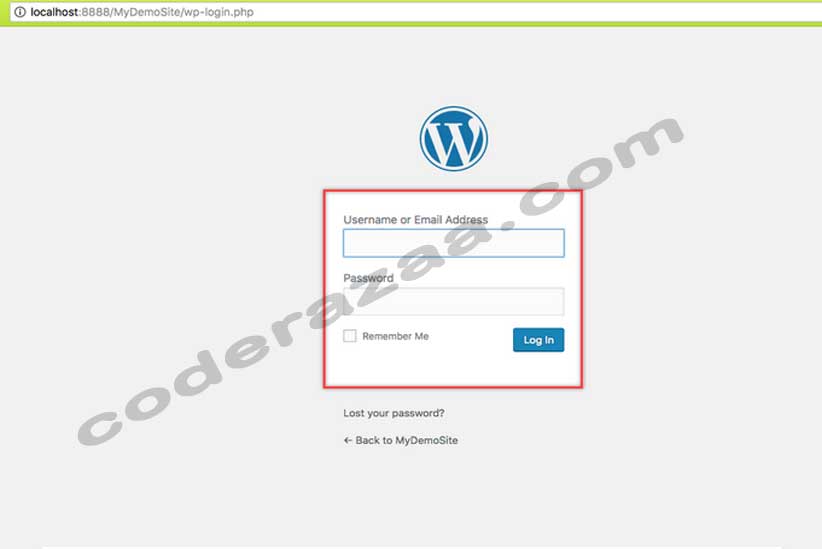
Select Log In: You should get something like this:
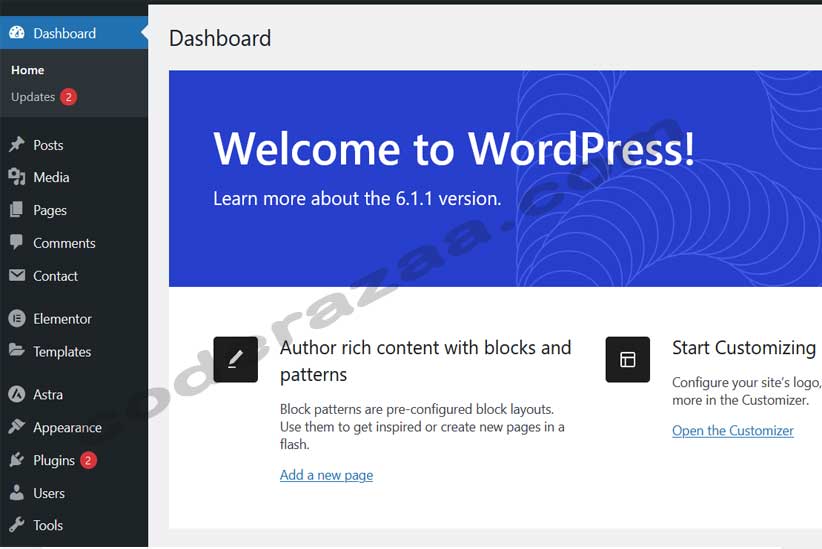
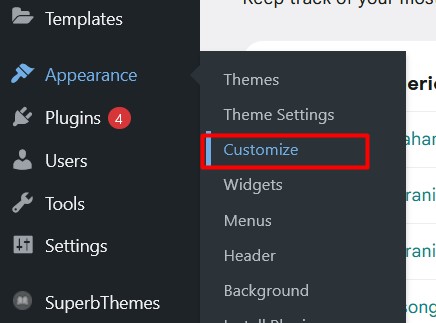
Go to Appearance> Customize: You should get something like this:
Customize Your Website: You should get something like this:
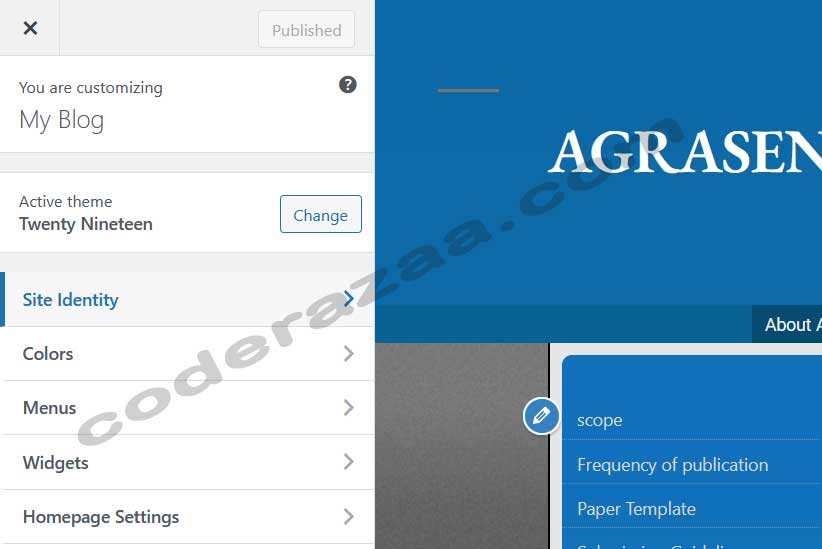
Change the site title and tagline: You should get something like this:
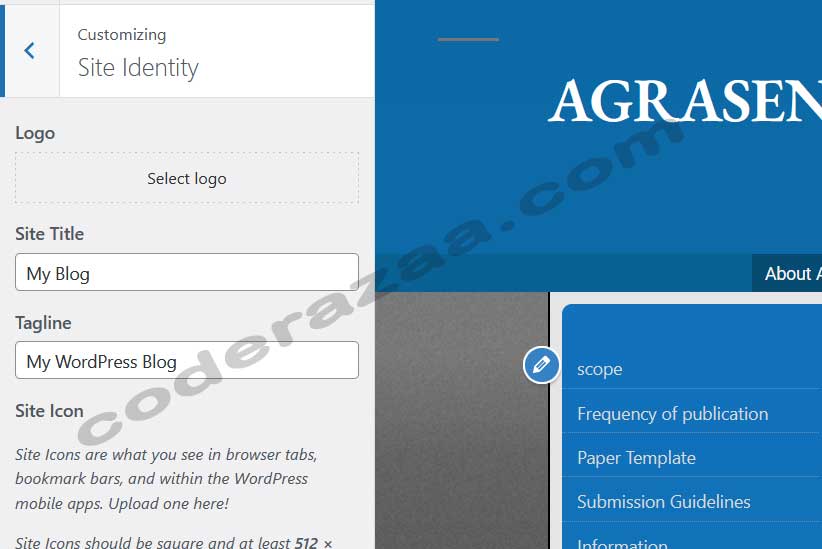
Change the background colour of the header: You should get something like this:
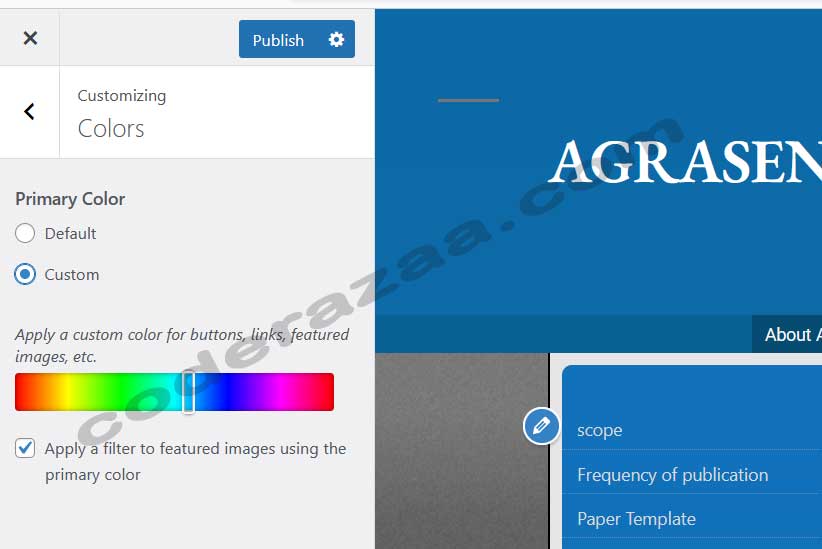
Add the Menu of site: You should get something like this:
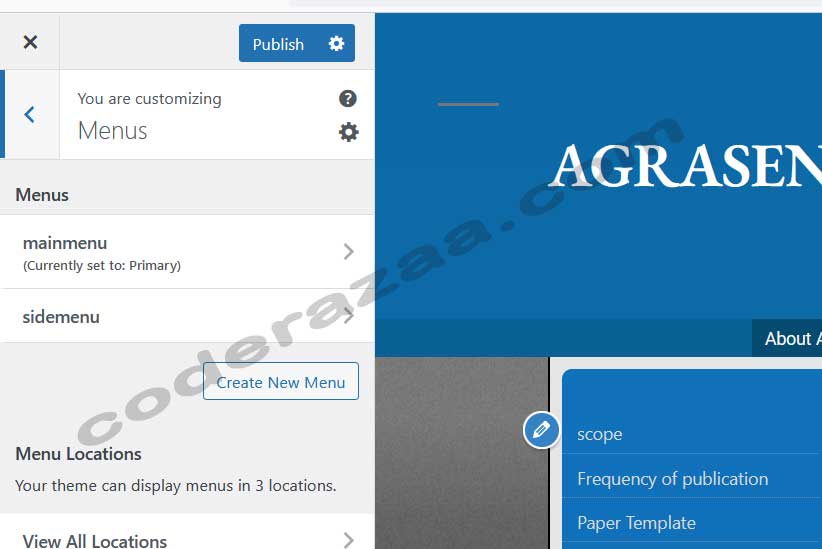
Change the Front page : To create a static page (by default, its latest posts), click on static page and select one of your pages: You should get something like this:
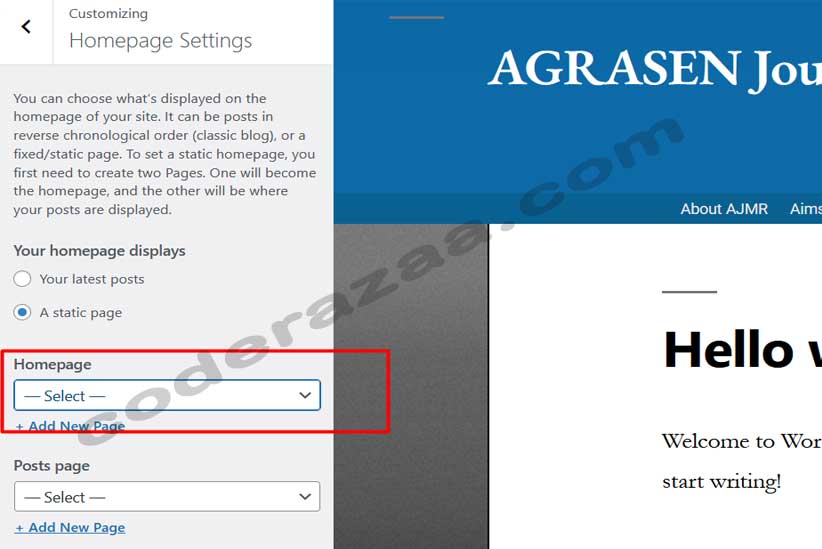
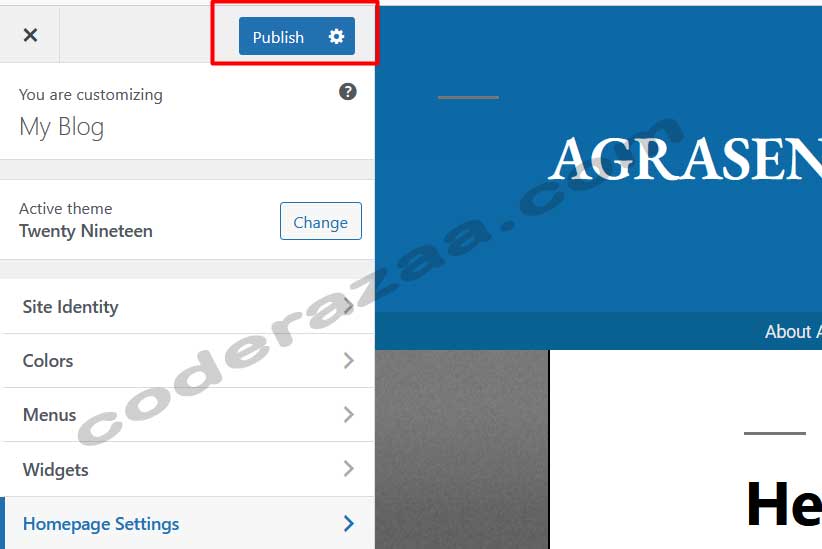
Save and publish if you want to make a change, otherwise cancel.
Display your updates Navigate to http://localhost/thedemostore in your browser.
# Summary
Here is what you've learned in this lesson:
- Customize Your WordPress Site
Continue to the next lesson and learn more about How to fix There was an error trying to send your message. Please try again later..