
CSS Syntax and Selectors
Easy CSS Syntax and Selectors Guide: 5 Core Selector Types & Examples
Master web styling rules with this complete CSS syntax and selectors guide. Learn element, class, ID, group, and attribute selectors with hands-on examples.
Estimated Read Time: 20 Minutes | Category: Web Development Fundamentals
Overview: Understanding CSS Syntax and Selectors & DOM Targeting
Quick CSS Syntax and Selectors Summary:
- Targeted Rule Engine: CSS syntax defines how styling rules are structured, while CSS selectors determine which specific HTML elements receive those styling rules.
- Rule Set Anatomy: A CSS rule set consists of a selector followed by a declaration block enclosed in curly braces
{}containing key-value property pairs. - 5 Basic Selectors: HTML elements can be targeted using Element/Type selectors (
p), Class selectors (.classname), ID selectors (#idname), Universal selectors (*), or Grouping selectors (h1, h2, h3). - Combinator Relationships: Advanced selectors target elements based on hierarchy relationships (Descendant, Child
>, Adjacent Sibling+, General Sibling~). - Specificity Cascade: When multiple selectors target the same HTML element, the browser calculates a specificity score (Inline Styles > IDs > Classes > Elements) to decide which rule wins.
Welcome to Lesson 2 of our structured Web Development curriculum. Following our previous lesson on Easy CSS Introduction Guide: 5 Core Styling Principles & Examples, you now understand how Cascading Style Sheets separate visual presentation from HTML markup. The next vital step in mastering front-end design is controlling how styling rules target HTML elements using CSS syntax and selectors.
Writing CSS is like sending precise styling instructions to a web browser. However, before the browser can apply text colors, background gradients, padding margins, or layout grids, it needs to know which specific HTML tags on the page should receive those styles. CSS selectors provide the exact query engine that targets single elements, groups of elements, or complex nested components across your web document.
In this comprehensive CSS syntax and selectors guide, we will explore the anatomy of CSS rule sets, basic selector types, class versus ID specificity, combinators, attribute selectors, pseudo-classes, specificity calculation rules, and hands-on code examples.
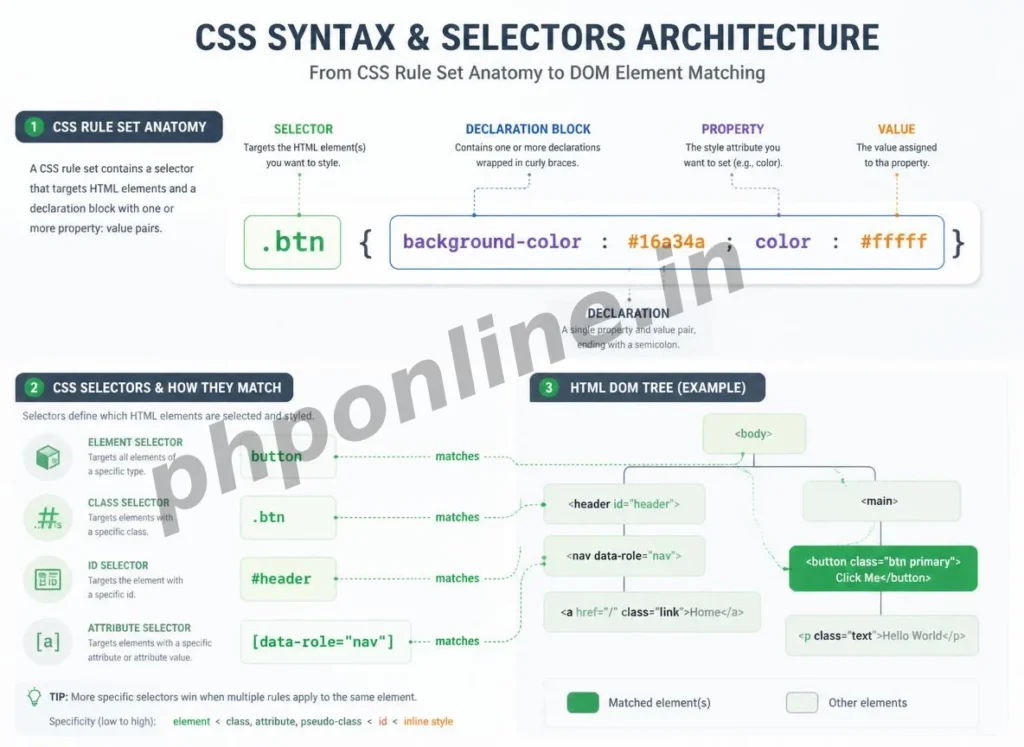
Prerequisites Before Learning Selectors
To test the hands-on code examples in this CSS syntax and selectors tutorial, verify that your development environment meets these basic requirements:
- Web Browser: A modern web browser such as Google Chrome, Mozilla Firefox, Microsoft Edge, or Apple Safari.
- Code Editor: A text editor such as Visual Studio Code, Sublime Text, or Notepad++.
- CSS Foundations: Understanding of basic CSS insertion methods (external, internal, and inline stylesheets).
If you need to review how external stylesheets link to HTML documents, visit our previous guide on Easy CSS Introduction Guide: 5 Core Styling Principles & Examples.
1. Anatomy of CSS Syntax
A CSS stylesheet is composed of individual **Rule Sets**. Every rule set contains two main parts: a **Selector** and a **Declaration Block**.
/* Standard CSS Rule Set Syntax */
selector {
    property: value;
    property: value;
}
Detailed Breakdown of Syntax Components:
- Selector: The opening statement pointing to the target HTML tag, class name, or ID attribute (e.g.,
h1or.card). - Declaration Block: The entire container enclosed within curly braces
{}holding one or more style declarations. - Property: The specific visual style attribute you want to change (e.g.,
color,font-size,background-color). - Value: The assignment value given to the CSS property (e.g.,
#0073aa,20px,center). - Colon (
:): Separates the CSS property from its corresponding value. - Semicolon (
;): Terminates an individual style declaration line. Omitting semicolons causes subsequent declarations to break!
Basic Syntax Example
/* Styling h2 elements using proper CSS syntax */
h2 {
    color: #e65100;
    font-size: 24px;
    margin-bottom: 15px;
}
Want to test this CSS code live or build custom styles automatically? Try running it in our Online CSS Editor or generate instant layout rules with our AI CSS Generator.
2. The 5 Core CSS Selectors
CSS provides five primary selector categories to target HTML elements based on tag names, custom attributes, or structural groupings:
1. Element / Type Selector (Targeting by Tag Name)
An element selector targets all HTML tags matching a specific tag name across the entire document (e.g., targeting all <p>, <h1>, or <a> tags):
/* Targets every <p> element on the web page */
p {
    color: #333333;
    line-height: 1.6;
}
2. Class Selector (Targeting by .classname)
A class selector targets HTML elements containing a specific class="..." attribute. Class names are prefixed with a dot (.) in CSS syntax. Classes are reusable, meaning you can apply the same class name to multiple elements across a web page:
/* HTML Markup */
<p class="highlight-box">This is an important note.</p>
<div class="highlight-box">This is a highlighted card block.</div>

/* CSS Selector */
.highlight-box {
    background-color: #fff3e0;
    border-left: 4px solid #ff9800;
    padding: 12px;
}
Want to test this CSS code live or build custom styles automatically? Try running it in our Online CSS Editor or generate instant layout rules with our AI CSS Generator.
3. ID Selector (Targeting by #idname)
An ID selector targets a single HTML element containing a unique id="..." attribute. ID names are prefixed with a hash symbol (#) in CSS syntax. Unlike classes, an ID name must be strictly **unique** and used only once per HTML document:
/* HTML Markup */
<header id="main-site-header">Welcome to PHPOnline</header>

/* CSS Selector */
#main-site-header {
    background-color: #0073aa;
    color: #ffffff;
    padding: 20px;
    text-align: center;
}
4. Universal Selector (Targeting Everything with *)
The universal selector uses an asterisk (*) to match and apply styles to **every single HTML element** on the web page. It is most frequently used to write global CSS reset rules:
/* Global CSS Box Reset */
* {
    margin: 0;
    padding: 0;
    box-sizing: border-box;
}
5. Grouping Selector (Combining Selectors with Commas)
When multiple selectors share identical styling declarations, you can group them into a single CSS rule set by separating selector names with commas (,). This eliminates repetitive code:
/* Grouping h1, h2, and h3 to share identical font typography */
h1, h2, h3 {
    font-family: 'Helvetica Neue', Arial, sans-serif;
    color: #1a252f;
    letter-spacing: -0.5px;
}
Want to test this CSS code live or build custom styles automatically? Try running it in our Online CSS Editor or generate instant layout rules with our AI CSS Generator.
3. Combinator Selectors: Targeting Structural Relationships
Combinator selectors target elements based on their exact structural positions relative to parent, child, or sibling elements inside the HTML document tree:
| Combinator Name | Syntax Operator | Sample Rule | Matched Target Description |
|---|---|---|---|
| Descendant Selector | Space () | div p | Matches all <p> elements nested anywhere inside a <div>. |
| Child Selector | Greater Than (>) | ul > li | Matches only direct child <li> elements immediately inside a <ul>. |
| Adjacent Sibling | Plus Sign (+) | h2 + p | Matches the single <p> element placed immediately after an <h2>. |
| General Sibling | Tilde (~) | h2 ~ p | Matches all <p> sibling elements that follow an <h2> under the same parent. |
Combinator Code Example
/* Direct Child Selector Example */
nav > ul {
    list-style: none;
    display: flex;
}

/* Adjacent Sibling Example: Capitalizing the lead paragraph after an H2 */
h2 + p {
    font-size: 18px;
    font-weight: 500;
}
Want to test this CSS code live or build custom styles automatically? Try running it in our Online CSS Editor or generate instant layout rules with our AI CSS Generator.
4. CSS Specificity & Conflict Resolution
What happens when two conflicting CSS rules target the exact same HTML element? For example:
/* Conflict Example */
p { color: blue; }
.text-danger { color: red; }
#hero-text { color: green; }
The web browser resolves styling conflicts using a scoring system called **CSS Specificity**. The selector with the highest specificity score wins, overriding lower specificity rules regardless of their position in the stylesheet.
The Specificity Hierarchy Score System:
- Inline Styles (1, 0, 0, 0): Applied directly inside HTML opening tags using
style="..."(Highest Priority). - ID Selectors (0, 1, 0, 0): Targeted via
#id-name. - Class / Attribute / Pseudo-Classes (0, 0, 1, 0): Targeted via
.class-name,[type="text"], or:hover. - Element / Type Selectors (0, 0, 0, 1): Targeted via HTML tag names (e.g.,
p,h1,div). - Universal Selector (0, 0, 0, 0): Targeted via
*(Lowest Priority).
The !important Override: Adding !important to a CSS value (e.g., color: red !important;) overrides all standard specificity calculations. Use !important sparingly, as it creates difficult-to-debug stylesheet overrides.
5. Complete Hands-on Page Styling Example
Below is a complete HTML document paired with an internal CSS stylesheet demonstrating element, class, ID, grouping, and child combinator selectors combined:
<!DOCTYPE html>
<html lang="en">
<head>
<meta charset="UTF-8">
<meta name="viewport" content="width=device-width, initial-scale=1.0">
<title>CSS Syntax and Selectors Demonstration</title>
<style>
/* 1. Universal Reset */
* {
margin: 0;
padding: 0;
box-sizing: border-box;
}
/* 2. Element Selectors */
body {
font-family: Arial, sans-serif;
background-color: #f8f9fa;
color: #333333;
padding: 20px;
}
/* 3. ID Selector */
#main-title {
color: #0073aa;
margin-bottom: 10px;
}
/* 4. Grouping Selector */
h2, h3 {
color: #2c3e50;
margin-top: 15px;
margin-bottom: 10px;
}
/* 5. Class Selectors */
.info-card {
background-color: #ffffff;
border: 1px solid #e0e0e0;
border-radius: 6px;
padding: 15px;
margin-bottom: 15px;
}
.text-accent {
color: #e65100;
font-weight: bold;
}
/* 6. Child Combinator Selector */
.info-card > p {
line-height: 1.6;
}
</style>
</head>
<body>
<h1 id="main-title">Mastering CSS Syntax and Selectors</h1>
<p>Learn how to target HTML elements cleanly using modern CSS rule sets.</p>
<h2>Featured Course Cards</h2>
<div class="info-card">
<h3>HTML5 & CSS3 Architecture</h3>
<p>Build responsive web page layouts with <span class="text-accent">modern standards</span>.</p>
</div>
<div class="info-card">
<h3>PHP 8 & MySQL Database Engineering</h3>
<p>Develop secure backend web applications using PDO prepared statements.</p>
</div>
</body>
</html>Want to test this CSS code live or build custom styles automatically? Try running it in our Online CSS Editor or generate instant layout rules with our AI CSS Generator.
Validating HTML and CSS Code Standards
Misspelled selector names, missing curly braces, or unclosed HTML class attributes can cause stylesheet rules to fail silently.
Before publishing web pages, always paste your HTML and CSS markup into automated verification tools like our PHPOnline HTML Validator Tool to verify compliance with W3C web standards.
Summary Comparison of Core CSS Selectors
| Selector Type | CSS Syntax Example | Specificity Rank | Primary Application Scenario |
|---|---|---|---|
| Universal Selector | * | Lowest (0,0,0,0) | Global CSS resets (margin: 0; padding: 0;). |
| Element Selector | p, h1, div | Low (0,0,0,1) | Applying default typography and layout styles across all matching tags. |
| Class Selector | .btn, .card | Medium (0,0,1,0) | Best Practice: Styling reusable UI components across pages. |
| ID Selector | #header, #footer | High (0,1,0,0) | Styling single, unique page layout containers. |
| Grouping Selector | h1, h2, h3 | Depends on elements | Sharing identical declarations across multiple distinct selectors. |
| Child Combinator | ul > li | Combined score | Targeting immediate direct child elements inside a parent container. |
Troubleshooting Common CSS Selector Errors
| Observed Selector Issue | Probable Cause | Recommended Solution |
|---|---|---|
| Class style rules fail to apply to target HTML elements | Forgetting the leading dot (.) in CSS syntax (e.g., writing card {} instead of .card {}). | Prefix class selectors with a dot (.classname) and ID selectors with a hash (#idname). |
| Class styles are overridden by unexpected default rules | Higher specificity rules (such as an ID selector or inline style) overriding the class declaration. | Inspect elements in browser Developer Tools to verify specificity calculation scores. |
| Entire stylesheet stops working after adding a new selector rule | Missing closing curly brace } or missing semicolon ; in the preceding rule set. | Check for missing closing braces } and validate markup using our HTML Validator Tool. |
| Multiple elements sharing the same ID cause CSS or JS errors | Reusing the same id="..." attribute on more than one HTML element per page. | IDs must be strictly unique per page. Change duplicate ID references into reusable class names (class="..."). |
Frequently Asked Questions (FAQ)
Q1: What are CSS syntax and selectors and why are they fundamental?
CSS syntax and selectors define the structure and targeting rules used to format HTML web documents. CSS syntax establishes how property-value declarations are written, while selectors pinpoint which exact HTML tags, classes, or IDs receive those visual styles.
Q2: What is the difference between a class selector and an ID selector in CSS?
A class selector (prefixed with a dot, e.g., .button) can be reused across multiple HTML elements on the same web page. An ID selector (prefixed with a hash, e.g., #main-header) must be strictly unique and applied to only one element per HTML document. ID selectors also carry higher specificity than class selectors.
Q3: How does CSS specificity calculate which style rule wins a conflict?
CSS specificity calculates a score based on selector weight: Inline Styles (1,0,0,0) > ID Selectors (0,1,0,0) > Class/Attribute Selectors (0,0,1,0) > Element Selectors (0,0,0,1). The rule set with the highest score overrides conflicting styles.
Q4: What is a CSS grouping selector and when should you use it?
A CSS grouping selector combines multiple selectors into a single rule set by separating their names with commas (e.g., h1, h2, h3 { color: #0073aa; }). Grouping selectors eliminate repetitive code when multiple elements share identical styling declarations.
Next Steps & Official References
Consult official technical web standards on the MDN Official CSS Selectors Documentation (mozilla.org).
Before publishing your web page layouts, validate your code syntax using our PHPOnline HTML Validator Tool.
Ready for the next lesson in sequence? Proceed directly to the next lesson in Module 1: Next Lesson: CSS Colors, Hex Codes & Background Properties →
# Summary
Here is what you've learned in this lesson:
- Easy CSS Syntax and Selectors Guide: 5 Core Selector Types & Examples
- Overview: Understanding CSS Syntax and Selectors & DOM Targeting
- Prerequisites Before Learning Selectors
- 1. Anatomy of CSS Syntax
- 2. The 5 Core CSS Selectors
- 3. Combinator Selectors: Targeting Structural Relationships
- 4. CSS Specificity & Conflict Resolution
- 5. Complete Hands-on Page Styling Example
- Validating HTML and CSS Code Standards
- Summary Comparison of Core CSS Selectors
- Troubleshooting Common CSS Selector Errors
- Frequently Asked Questions (FAQ)
- Next Steps & Official References