
CSS Display Property
Easy CSS Display Property Guide: 4 Core Display Values & Examples
Master element behavior with this complete CSS display property guide. Learn block, inline, inline-block, and display none with real-world examples.
Estimated Read Time: 21 Minutes | Category: Web Development Fundamentals
Overview: Understanding the CSS Display Property & Box Rendering
Quick CSS Display Property Summary:
- Layout Control Engine: The
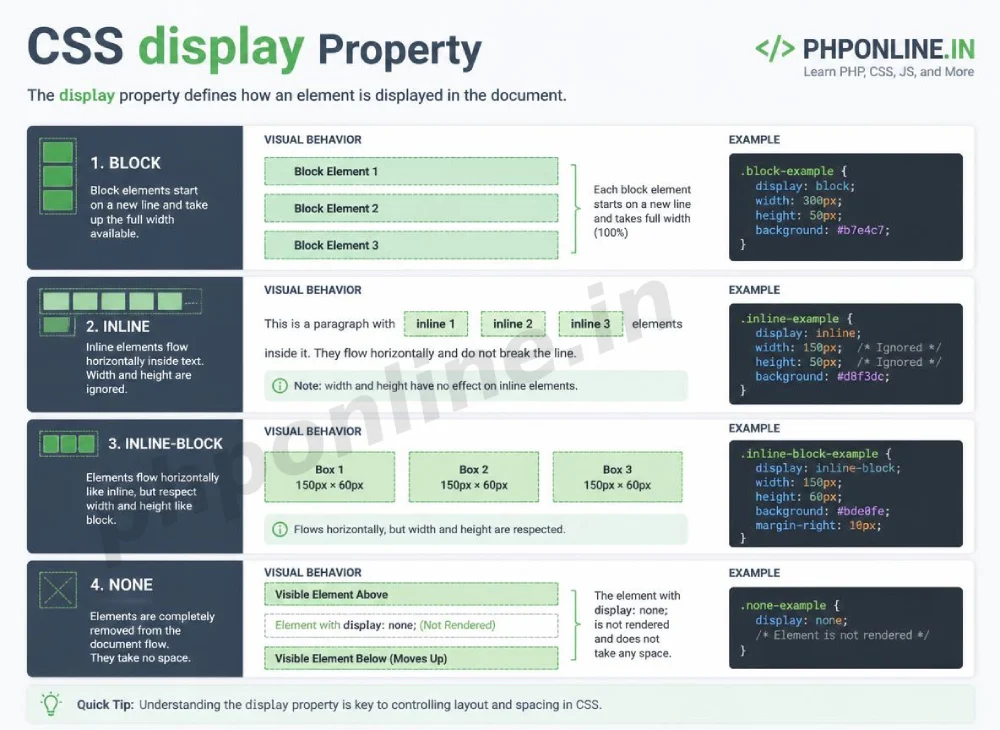
displayproperty is the single most fundamental layout property in CSS, dictating how an element’s rectangular box behaves and flows among neighboring elements. - Block Elements (display: block): Force a line break, occupy 100% of container width by default, and fully respect top/bottom margins, padding, and explicit dimensions.
- Inline Elements (display: inline): Flow horizontally inline with text, take up only as much width as their content requires, and ignore explicit
width,height, and top/bottom margins. - Hybrid Controls (display: inline-block): Flow horizontally alongside other elements like inline boxes while respecting explicit width, height, padding, and vertical margins like block boxes.
- Hiding Elements (display: none): Completely removes an element from the visual page layout and accessibility tree without reserving layout space (unlike
visibility: hidden).
Welcome to Lesson 8 of our structured Web Development curriculum, marking the beginning of Module 3: Layouts & Positioning. Following our previous lesson on Easy CSS Borders and Outlines Guide: 5 Core Differences & Examples, you now understand how to frame elements using borders, border-radius geometry, and accessibility focus rings. The next critical step in mastering web layouts is controlling element box behavior using the CSS display property.
Every HTML element has a default display value determined by the W3C specification. For example, headings (<h1>) and paragraphs (<p>) naturally stack vertically on top of each other, while links (<a>) and strong text (<strong>) sit side-by-side inside sentences. The CSS display property allows developers to override these default browser behaviors completely, turning inline links into full-width navigation buttons or hiding dynamic modal dialogs.
In this comprehensive CSS display property guide, we will explore block-level rendering, inline box constraints, the power of inline-block UI components, hiding elements safely, accessibility considerations, and hands-on code examples.
Prerequisites Before Altering Display Behavior
To test the hands-on code examples in this CSS display property guide, verify that your development environment meets these basic requirements:
- Web Browser: A modern web browser such as Google Chrome, Mozilla Firefox, Microsoft Edge, or Apple Safari.
- Code Editor: A text editor such as Visual Studio Code, Sublime Text, or Notepad++.
- Box Model Foundations: Solid understanding of the CSS Box Model, content dimensions, padding, borders, and margins.
If you need to review how box-sizing and padding affect element width, visit our previous guide on Easy CSS Box Model Guide: 4 Core Box Layers & Examples.
1. Block-Level Elements (display: block)
Elements with display: block start on a **new line** in the document layout, forcing preceding and following elements above and below them.
Key Behaviors of display: block:
- Full Container Width: By default, block elements automatically expand horizontally to fill 100% of their parent container’s width.
- Forces New Lines: Always starts on a fresh line and forces subsequent elements onto the line below.
- Full Box Model Support: Fully respects
width,height,padding,border, andmarginproperties on all four sides.
Default Block Elements in HTML:
Common native block elements include <div>, <h1>–<h6>, <p>, <ul>, <ol>, <li>, <header>, <main>, <article>, and <footer>.
/* Converting an inline anchor link into a full-width block button */
.nav-link-block {
    display: block;
    width: 100%;
    padding: 12px 20px;
    background-color: #0073aa;
    color: #ffffff;
    text-align: center;
}
Want to test this CSS code live or build custom styles automatically? Try running it in our Online CSS Editor or generate instant layout rules with our AI CSS Generator.
2. Inline Elements (display: inline)
Elements with display: inline sit **side-by-side** on the same line as neighboring inline content, flowing like words inside a paragraph.
Key Behaviors of display: inline:
- Fits Content Only: Takes up only as much horizontal width as its enclosed text or media content requires.
- No Forced Line Breaks: Does not start on a new line; sits on the same line as adjacent inline elements until text wraps at the container edge.
- Ignored Properties: **Ignores explicit width and height properties entirely!** It also ignores top and bottom margins, and top/bottom padding will not push neighboring vertical elements away.
Default Inline Elements in HTML:
Common native inline elements include <span>, <a>, <strong>, <em>, <code>, and <label>.
/* Styling an inline text highlight */
.text-highlight {
    display: inline;
    background-color: #fff3e0;
    color: #e65100;
    font-weight: bold;
    /* Width and Height declarations here will be completely IGNORED by the browser */
}
3. Hybrid Elements (display: inline-block)
The display: inline-block value provides the best of both worlds. It formats an element so that it flows horizontally inline with neighboring text, while granting full block-level dimensional control!
Why inline-block Is Essential for UI Design:
Suppose you want to style an anchor tag (<a>) as a side-by-side button component with specific width: 180px;, height: 45px;, and top/bottom margins. As a pure inline element, the link will ignore your width, height, and vertical margins. Changing its display to inline-block instantly enables full dimensional control while allowing other buttons to sit right next to it!
/* Creating side-by-side CTA buttons using inline-block */
.btn-inline {
    display: inline-block;
    width: 180px;         /* Respected! */
    height: 45px;        /* Respected! */
    margin: 10px 15px;    /* Vertical and Horizontal margins respected! */
    padding: 10px 20px;   /* Fully respected! */
    background-color: #0073aa;
    color: #ffffff;
    text-align: center;
    text-decoration: none;
    border-radius: 4px;
}
Want to test this CSS code live or build custom styles automatically? Try running it in our Online CSS Editor or generate instant layout rules with our AI CSS Generator.
4. Hiding Elements: display: none vs. visibility: hidden
When creating interactive web applications, developers frequently need to hide elements (like dropdown sub-menus, tab panels, or mobile navigation drawers). CSS provides two primary properties to hide elements, but they behave very differently in the box model layout:
| Feature / Property | display: none | visibility: hidden |
|---|---|---|
| Visual Display | Element is completely hidden from the screen. | Element is completely hidden from the screen. |
| Box Model Layout Space | Removes space entirely. Neighboring elements shift to collapse the empty gap. | Reserves layout space. The element becomes an invisible blank box, keeping its original dimensions. |
| DOM Structure & Page Tree | Remains in the raw HTML source code. | Remains in the raw HTML source code. |
| Screen Readers & Accessibility | Ignored completely by screen reader software. | Varies (typically skipped by assistive software). |
| Primary Application Scenario | Dynamic tab content panels, closed mobile menus, accordion blocks. | Reserving layout slots to avoid layout shifts when elements toggle visible. |
Hiding Code Examples
/* Completely removes element from visual layout */
.modal-closed {
    display: none;
}

/* Hides element visually, but preserves its physical layout dimensions */
.placeholder-box {
    visibility: hidden;
}
5. Summary Comparison of the 4 Primary Display Values
| display Value | Horizontal Line Behavior | Width & Height Respected? | Margin & Padding Respected? | Primary Application Scenario |
|---|---|---|---|---|
block | Forces a new line; occupies 100% container width. | Yes | Yes (All 4 sides) | Page sections, cards, headers, paragraph text blocks. |
inline | Flows horizontally inline alongside text. | No (Ignored) | Left/Right only (Top/Bottom ignored) | Inline text styling (<span>, <strong>, inline links). |
inline-block | Flows horizontally inline alongside text. | Yes | Yes (All 4 sides) | Navigation links, side-by-side buttons, badge cards, gallery thumbnails. |
none | Removes element box entirely from layout. | N/A | N/A | Hiding closed dropdowns, dynamic modals, and inactive tab panels. |
6. Complete Hands-on Demonstration Example
Below is a complete HTML document paired with a CSS stylesheet demonstrating how `block`, `inline`, `inline-block`, and `none` operate side-by-side:
<!DOCTYPE html>
<html lang="en">
<head>
    <meta charset="UTF-8">
    <meta name="viewport" content="width=device-width, initial-scale=1.0">
    <title>CSS Display Property Demonstration</title>

    <style>
        *, *::before, *::after {
            box-sizing: border-box;
            margin: 0;
            padding: 0;
        }

        body {
            font-family: Arial, sans-serif;
            background-color: #f4f6f9;
            color: #333;
            padding: 30px;
            max-width: 800px;
            margin: 0 auto;
        }

        h2 {
            color: #0073aa;
            margin-top: 20px;
            margin-bottom: 10px;
        }

        /* 1. Block Elements */
        .box-block {
            display: block;
            background-color: #e3f2fd;
            border: 2px solid #2196f3;
            padding: 10px;
            margin-bottom: 10px;
        }

        /* 2. Inline Elements */
        .box-inline {
            display: inline;
            background-color: #fff3e0;
            border: 2px solid #ff9800;
            padding: 10px; /* Top/Bottom padding will not push line height */
            width: 200px;  /* IGNORED by browser! */
        }

        /* 3. Inline-Block Elements */
        .box-inline-block {
            display: inline-block;
            width: 180px;
            height: 60px;
            background-color: #e8f5e9;
            border: 2px solid #4caf50;
            padding: 10px;
            margin: 5px;
            vertical-align: top;
        }

        /* 4. Hidden Element */
        .box-hidden {
            display: none;
        }
    </style>
</head>
<body>

    <h1>CSS Display Property in Action</h1>

    <h2>1. Block Elements (Stack Vertically)</h2>
    <div class="box-block">Block Box 1 (100% Width)</div>
    <div class="box-block">Block Box 2 (Forces New Line)</div>

    <h2>2. Inline Elements (Flow with Text)</h2>
    <p>
        Sentence text containing
        <span class="box-inline">Inline Box 1</span>
        and
        <span class="box-inline">Inline Box 2</span>
        sitting on the same line.
    </p>

    <h2>3. Inline-Block Elements (Side-by-Side + Dimensions)</h2>
    <div class="box-inline-block">Inline-Block 1 (180x60px)</div>
    <div class="box-inline-block">Inline-Block 2 (180x60px)</div>

    <!-- Hidden Box -->
    <div class="box-hidden">You will never see this text on screen!</div>

</body>
</html>
Want to test this CSS code live or build custom styles automatically? Try running it in our Online CSS Editor or generate instant layout rules with our AI CSS Generator.
Validating HTML and CSS Code Standards
Unexpected line wraps, broken layout buttons, and misplaced inline containers are frequently caused by incorrect display values.
Before publishing your web page layouts, validate your code syntax using our PHPOnline HTML Validator Tool.
Troubleshooting Common Display Property Errors
| Observed Layout Issue | Probable Cause | Recommended Solution |
|---|---|---|
Setting width or height on an element has zero visual effect | The element has display: inline; (either explicitly or by default, like a <span> or <a> tag). | Change the element’s display property to display: inline-block; or display: block;. |
Side-by-side inline-block elements have an annoying 4px horizontal gap between them | Web browsers render white space (spaces and line breaks) in HTML source code between inline-block tags as a space character. | Remove white space between tags in HTML, set parent font-size: 0;, or use modern CSS Flexbox/Grid layouts. |
Hiding an element with visibility: hidden leaves an awkward blank white box in the page layout | visibility: hidden preserves the element’s physical box model space. | Use display: none; instead if you want the layout gap to collapse completely. |
| Two adjacent buttons drop down to a new line unexpectedly | Using display: block; instead of display: inline-block; or CSS Flexbox. | Switch button display to display: inline-block; or wrap them in a display: flex; parent container. Validate code with our HTML Validator Tool. |
Frequently Asked Questions (FAQ)
Q1: What is the CSS display property and why is it fundamental?
The CSS display property is a core layout property that dictates how an HTML element’s box behaves in the document flow, determining whether it stacks vertically as a block, flows horizontally as inline text, or hides from view entirely.
Q2: What is the main difference between display: block and display: inline?
display: block forces a new line, takes up 100% container width by default, and respects all box model dimensions. display: inline sits on the same line as neighboring text, takes up only content width, and ignores explicit width, height, and vertical margins.
Q3: Why should you use display: inline-block for buttons and badges?
display: inline-block allows elements to sit side-by-side on the same line (like inline elements) while granting full control over width, height, padding, and margins (like block elements).
Q4: What is the difference between display: none and visibility: hidden?
display: none completely removes an element from the visual layout, collapsing its empty space. visibility: hidden hides the element visually but preserves its original box model space, rendering an invisible blank area.
Next Steps & Official References
Consult official technical web standards on the MDN Official CSS Display Reference (mozilla.org).
Before publishing your web page layouts, validate your code syntax using our PHPOnline HTML Validator Tool.
Ready for the next lesson in sequence? Proceed directly to the next lesson in Module 3: Next Lesson: CSS Positioning (Static, Relative, Absolute, Fixed, Sticky) →
# Summary
Here is what you've learned in this lesson:
- Easy CSS Display Property Guide: 4 Core Display Values & Examples
- Overview: Understanding the CSS Display Property & Box Rendering
- Prerequisites Before Altering Display Behavior
- 1. Block-Level Elements (display: block)
- 2. Inline Elements (display: inline)
- 3. Hybrid Elements (display: inline-block)
- 4. Hiding Elements: display: none vs. visibility: hidden
- 5. Summary Comparison of the 4 Primary Display Values
- 6. Complete Hands-on Demonstration Example
- Validating HTML and CSS Code Standards
- Troubleshooting Common Display Property Errors
- Frequently Asked Questions (FAQ)
- Next Steps & Official References
Continue to the next lesson and learn more about CSS Positioning.